You run up against a limitation in Ableton Live, or you’ve got a creative idea. What if you could make it happen using code? That’s the Ableton Extension SDK, out in public beta now (JavaScript, TypeScript, Node.js). And just like that, we’ve got Live with handy new workflows, opening up scores, connecting to the Web, and playing games. Here’s what it means, and what it can and can’t do (so far).
I’ve been testing Live Extensions since early builds, and talking to the nice folks who built them.
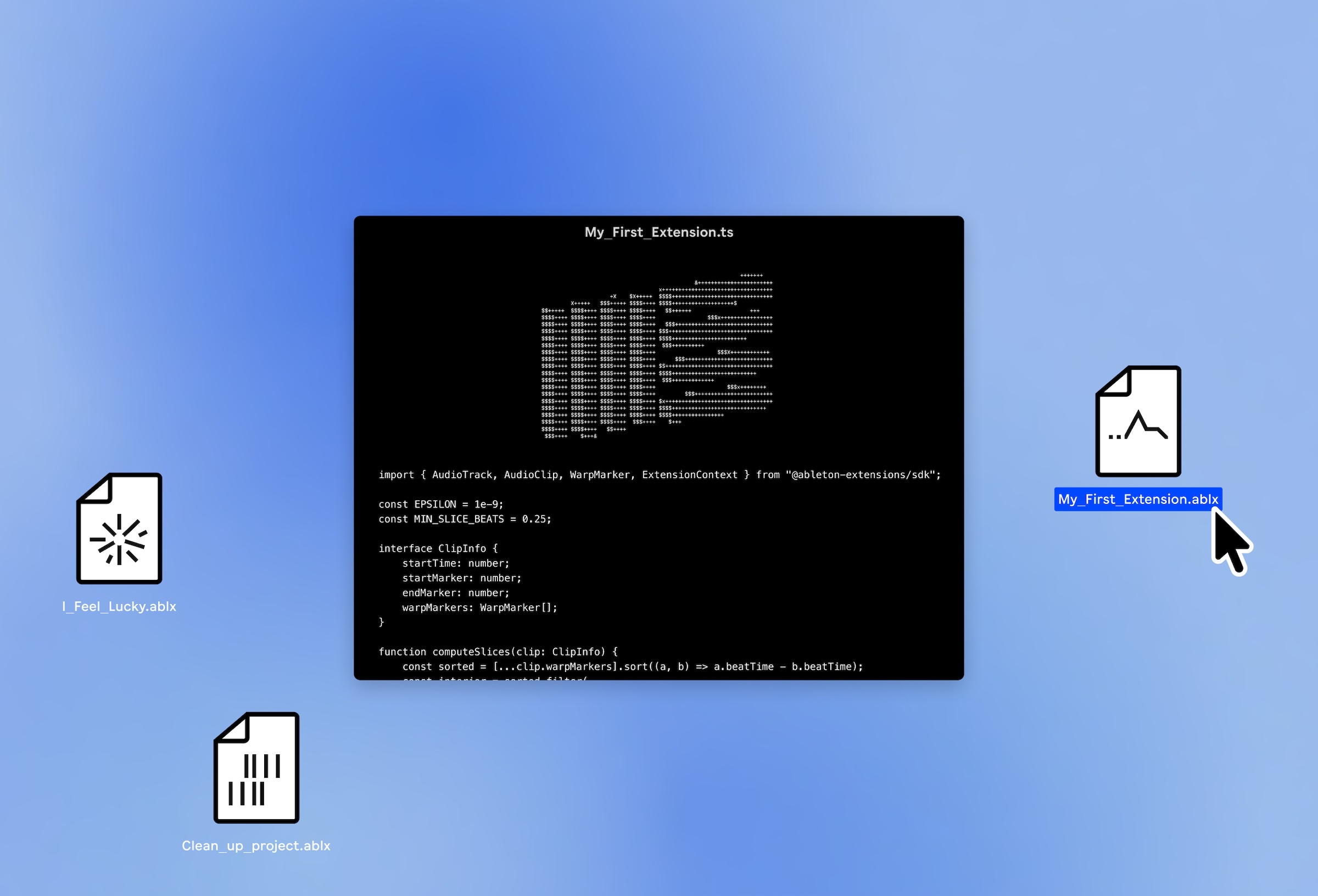
Live Extensions require some simple prerequisites for this beta, which you can go grab now (but hey, grab a coffee and maybe read this beautiful article first).
- Ableton Live Suite 12.4.5 beta (yes, Suite is required, as with Max for Live)
- Free Extensions SDK beta
- Node.js (and I agree with installing from the official installer; Homebrew packages are available but I always get tied up going that route).
- An editor. (Use any one you like; VS Code definitely works. C’mon someone must be using Panic Nova!)
Once installed, you have access to a few critical features:
- Direct Live Set Access. This is the part that lets you automate, compose, arrange, and add new actions via code, working with tracks, clips, and devices. If that sounds like the Live Object Model (LOM) in Max for Live, it should.
- Custom UIs. What you can’t do with Max for Live and the LOM is this: you can assign your Extensions to contextual menus (right-click and run) and make modal dialogs. These can include integrated webviews, which can also allow you to build your own interfaces.
- Node.js access. All the core APIs and NPM packages are accessible, too.
- Unified API.
All installed Extensions are available all the time; you don’t have to instantiate them the way you do Max for Live devices. You just drag-and-drop Extensions, or run in-progress code from your code editor and terminal. (Image from the current beta; assume all images in this article are subject to change. Developer Mode here is switched on because I was testing some code examples.)
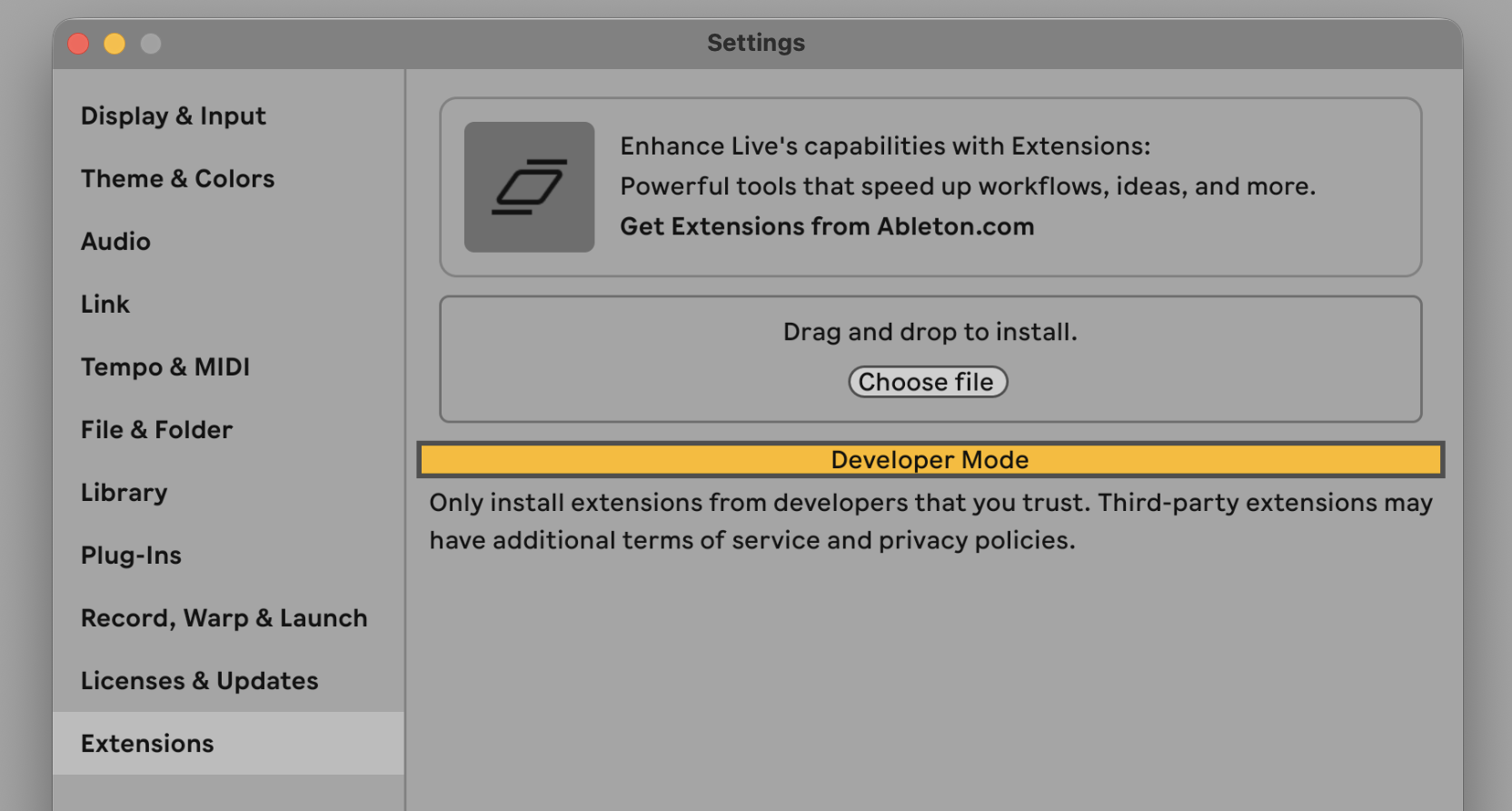
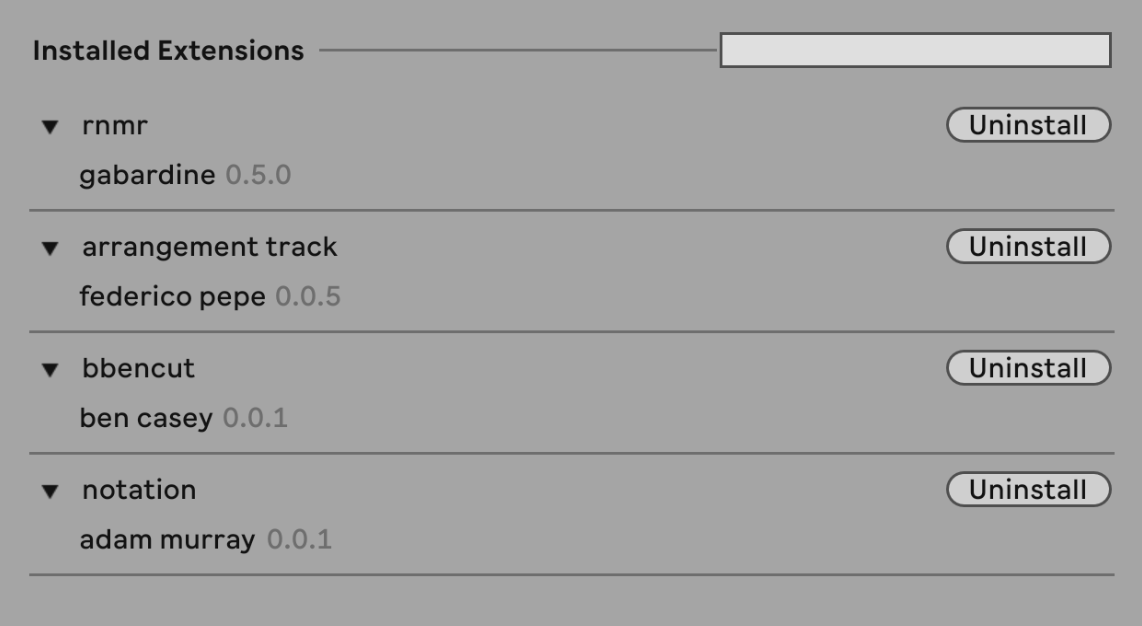
While you’re developing, you’ll most often run your Extension from your preferred code editor and terminal. Packaged extensions you install from the window above, and then they’ll appear like this — with the option to uninstall (like if Flappy Bird has made you forget about ever finishing your tracks).
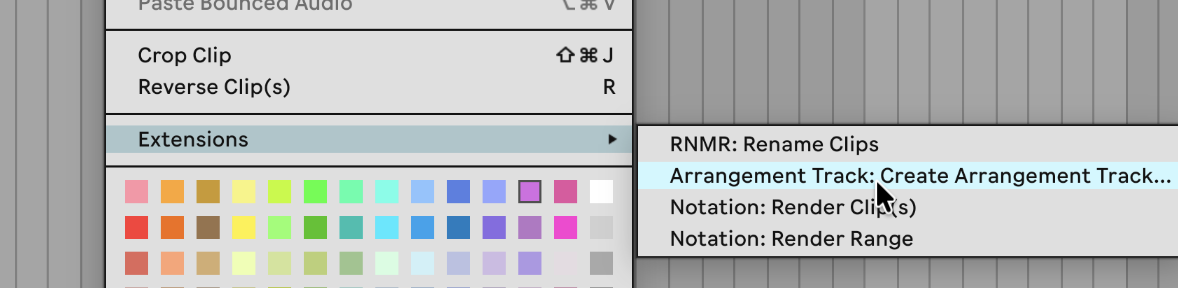
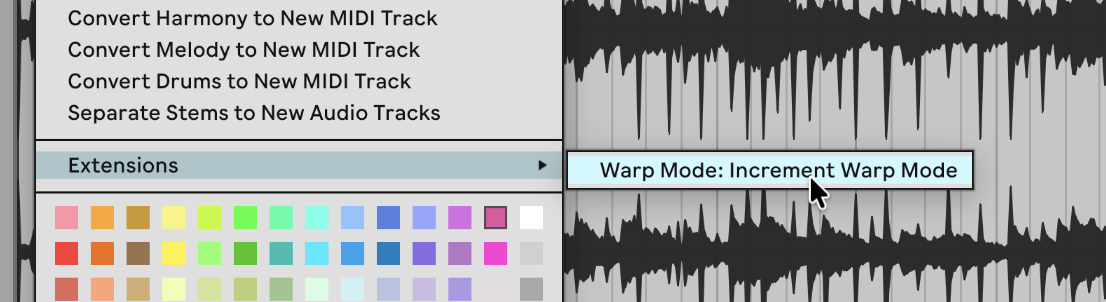
And then they’ll pop up, where relevant, by right-clicking the top of a Clip:
These Extensions can do a lot of stuff in Live. You definitely can’t access everything, and I’m sure you’ll find plenty that you want that’s missing (see some discussion of that below). But there’s a lot to, say, “keep you busy.”
- Import files into projects (including downloading them)
- Render audio from the Arrangement
- Trigger objects (like devices) and perform actions over particular ranges
So for instance, here is a list of scopes:
AudioClipMidiClipAudioTrackMidiTrackClipSlotSceneSimplerSampleDrumRack
For all the endless (and exhausting, sorry) discussion of how we’ll have AI-powered bots making music for us, here we finally see some powerful examples of ways you can finally reduce repetitive tasks like loading up Drum Racks or performing painfully dull post-production tasks or managing game audio assets in a Live session. And you don’t need any AI at all to do that; I’m actually looking forward to brushing up on my JavaScript and TypeScript skills. (I’m sure some people will use Claude Code and VS Code, of course, but I’m just going to fill up with a nice one-liter bottle of Berlin tap water and coffee.)
And this is not a massive robotic Live user; these are very specific, sandboxed creations to be used by humans with human intentions for their music.
To make your own extension, all you have to do is make a folder and run a little terminal-based wizard, then build via npm. There’s an extension host so you can make changes immediately without restarting Live, and some tools for building and packaging. The actual coding is going to require some brain cells if you haven’t done this before — though as I said, I’m in the mode of trying to exercise my aging brain more, not less! No pain, no gain! But yeah, some people will use Claude Code and the like. (Hey, if you do decide to do that, there are ways of running locally! But that’s a story for another time. My brain is always local very nearly always available locally.)
Running in VS Code, for instance, you would likely keep your SDK folder structure open, edit the TS code for the extension (plus all the housekeeping with the manifest and whatnot), and access npm, the Node.js package manager, for building and running your work, via a command line interface.
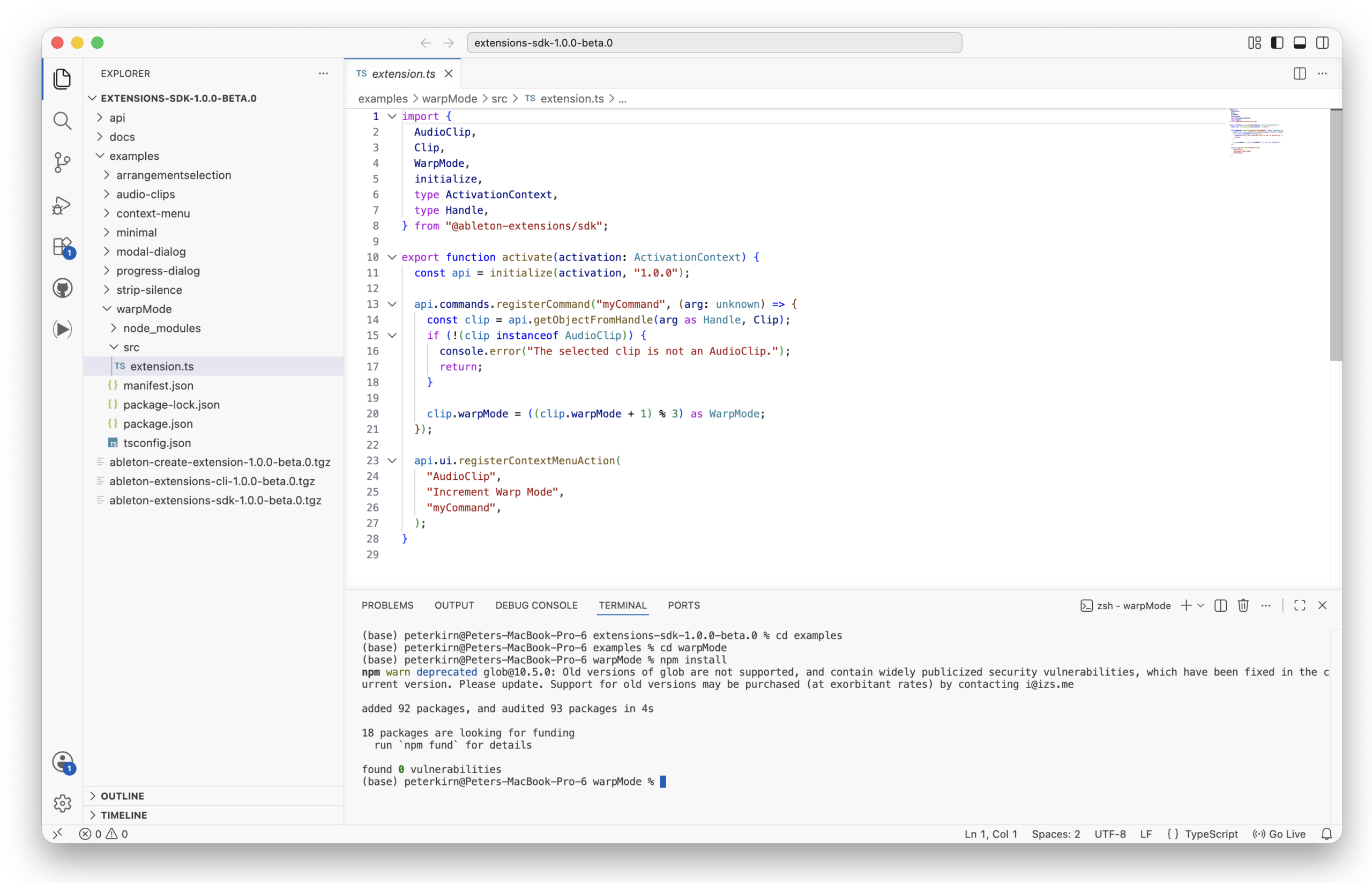
From the terminal (here in VS Code), just run npm with a pointer to the correct beta version:
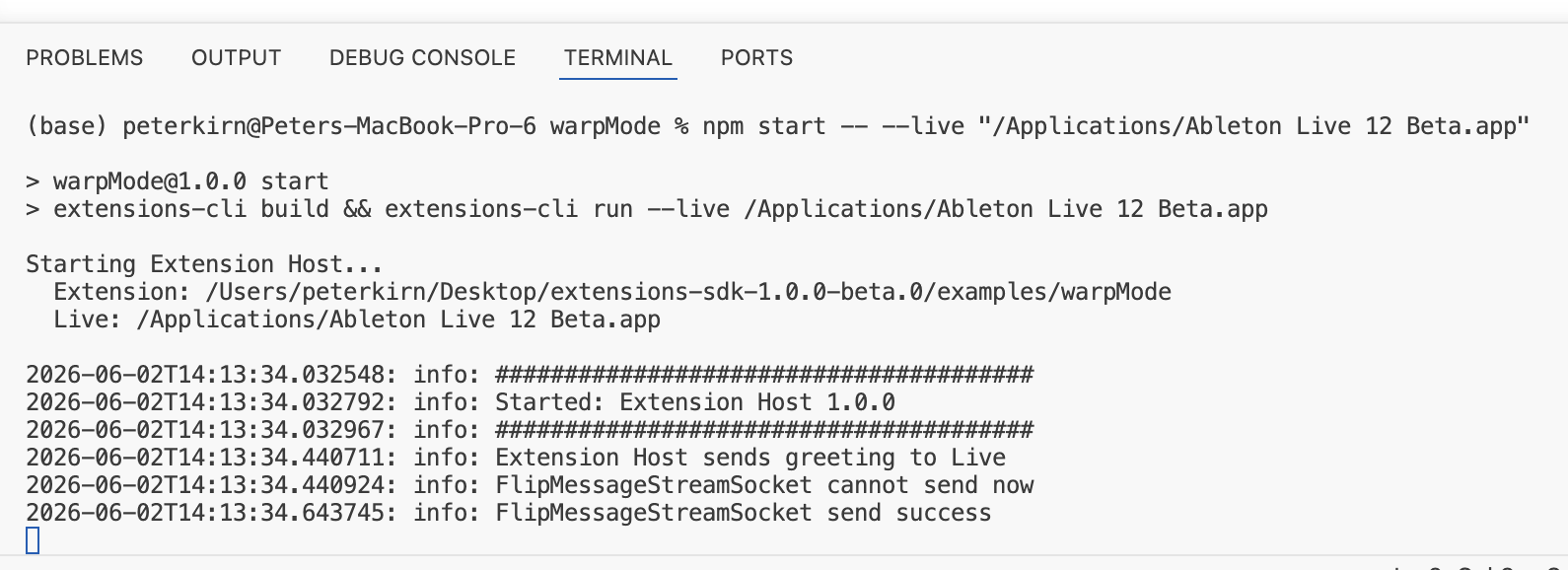
And you get a nice little pop-up submenu that does this:
Note: To run packaged Extensions, you’ll want to switch off Developer Mode again and make sure you don’t have an npm process running anywhere. Otherwise, those third-party Extensions won’t show up. I’ll walk through the process in more detail soon.
What this can do – examples
What this can do is a lot. So let’s go over some of the fun examples early testers have cooked up.
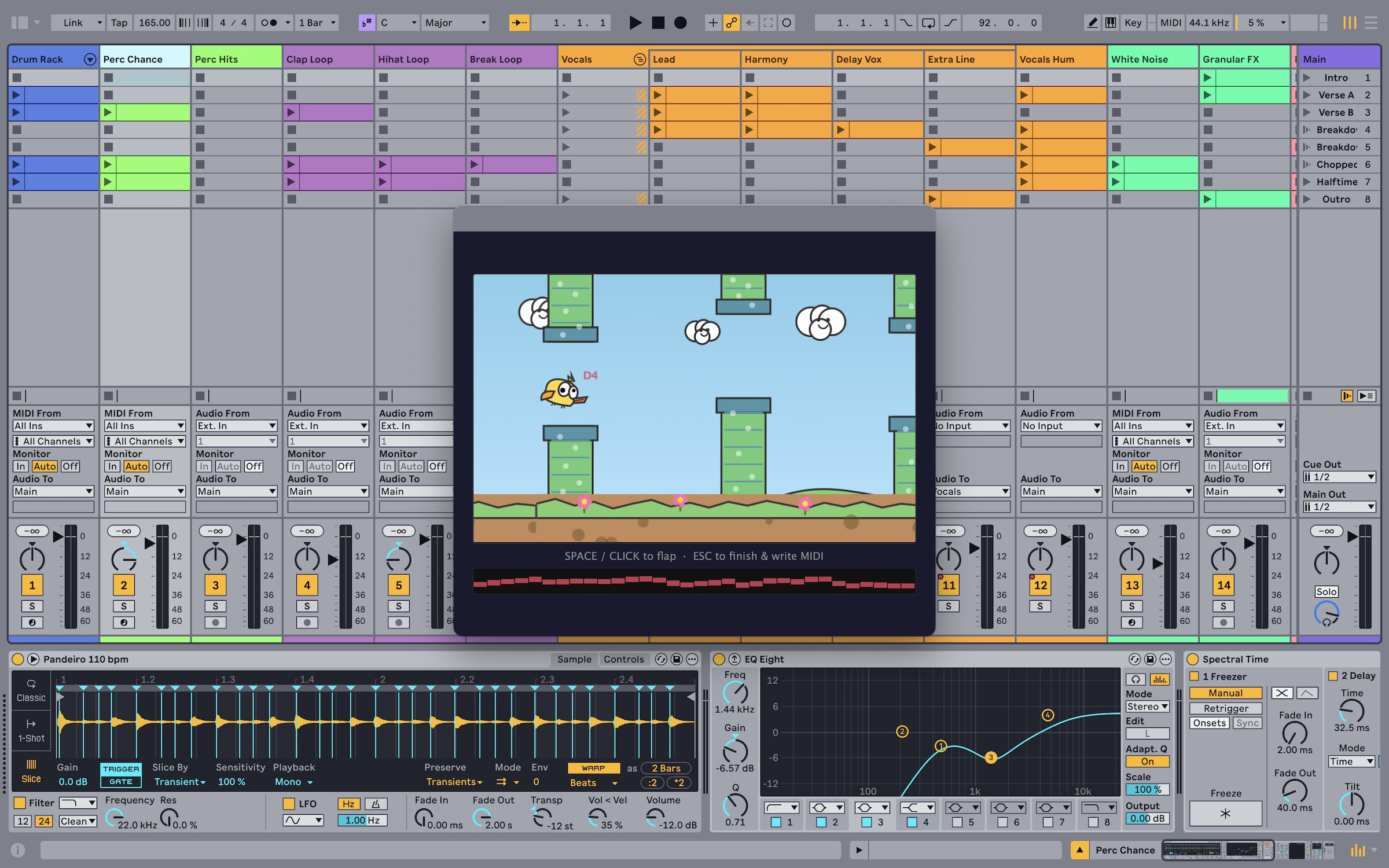
Yes, you can put a Flappy Bird game into a window and have the gameplay collect a melody for your project!
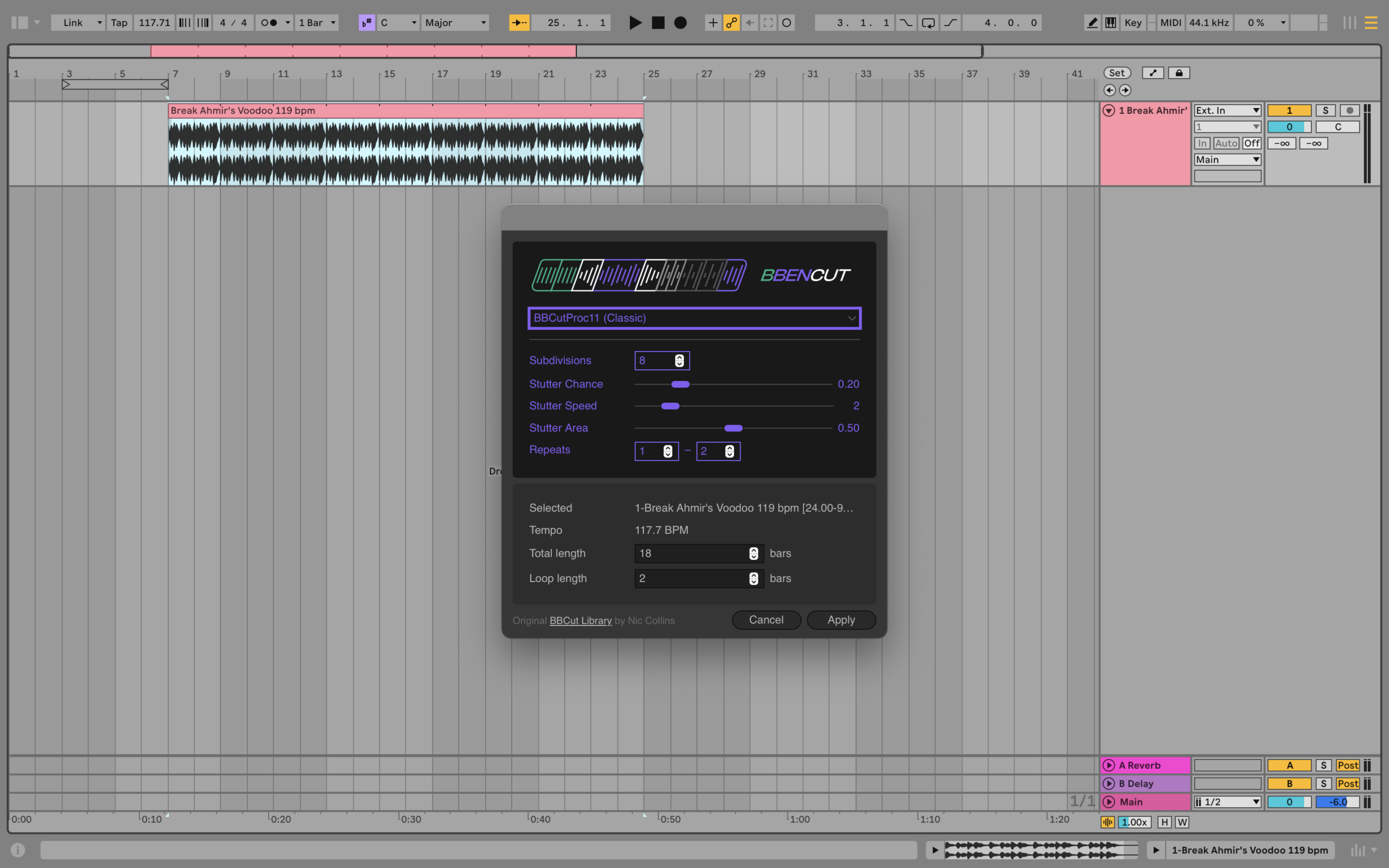
You can use Nick Collins’ library for cutting up breakbeats. (SuperCollider redux!)
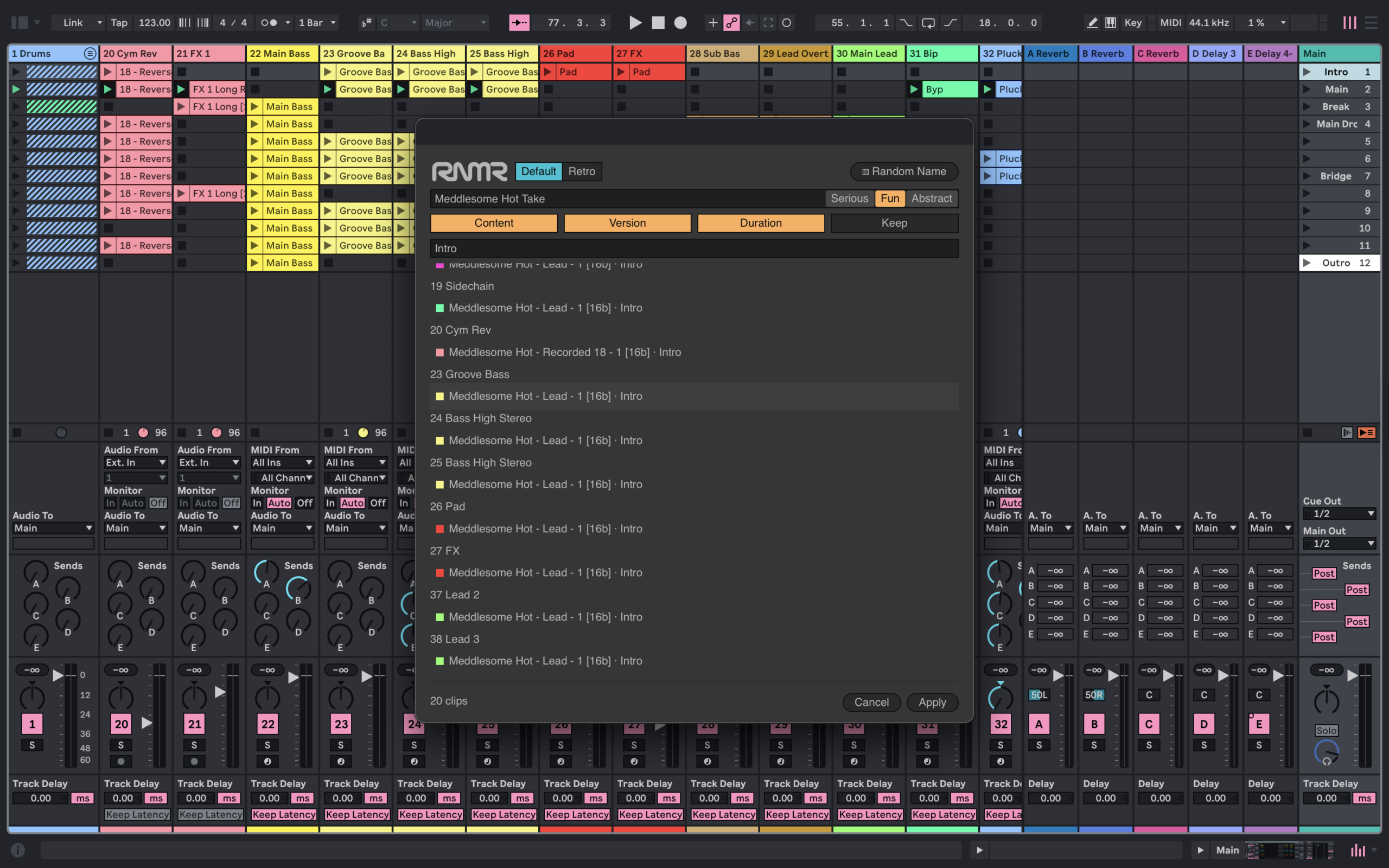
You can finally name all those clips with something you can actually read.
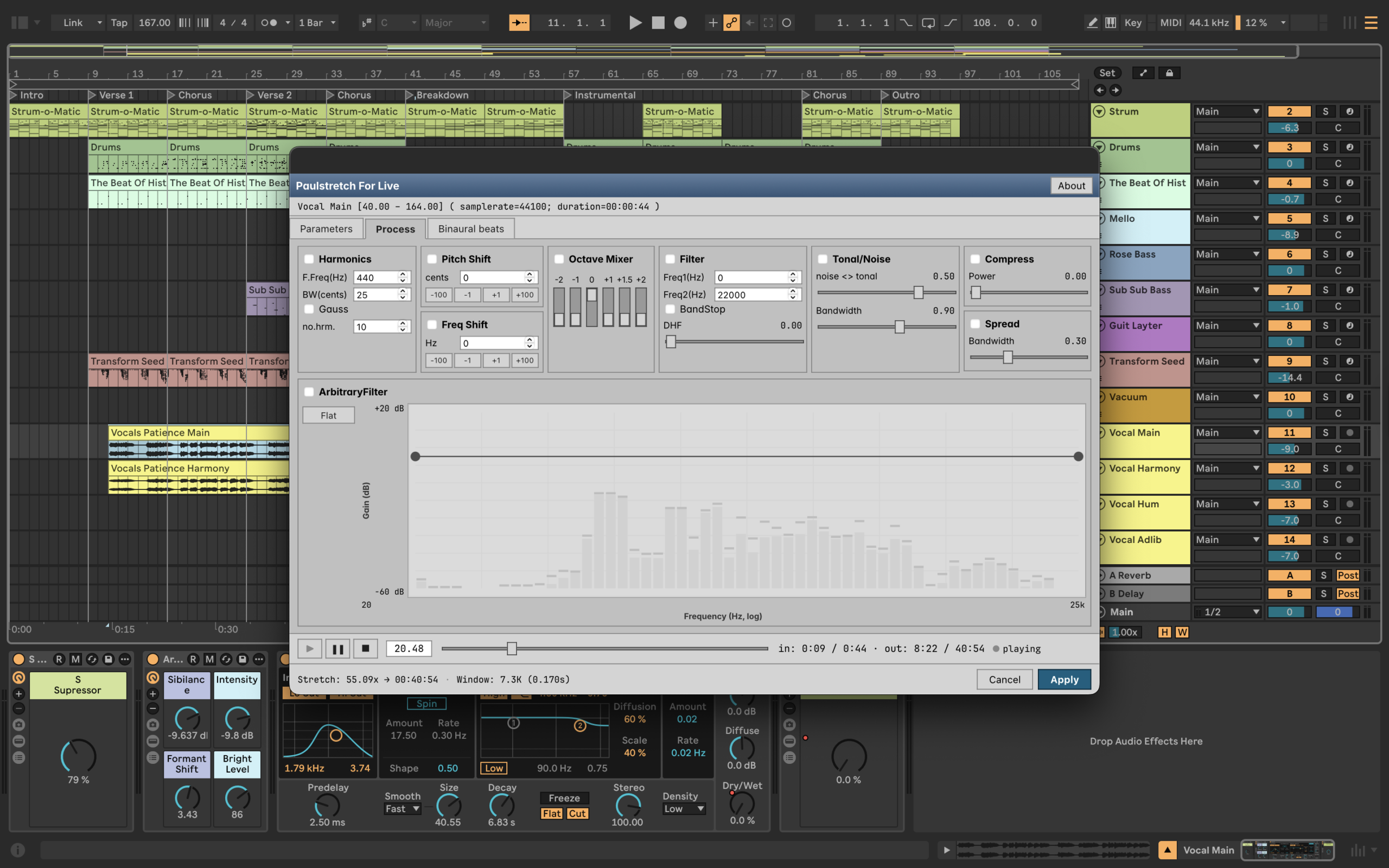
You can add the legendary PaulStretch algorithm to Live. (That’s made possible via olilarkin/paulstretch-for-live, which in turn uses the C++ rewrite libpaulstretch. And by the way, we’re seeing a ton of examples using WebAssembly. That opens up a lot that you might have assumed was impossible with this!)
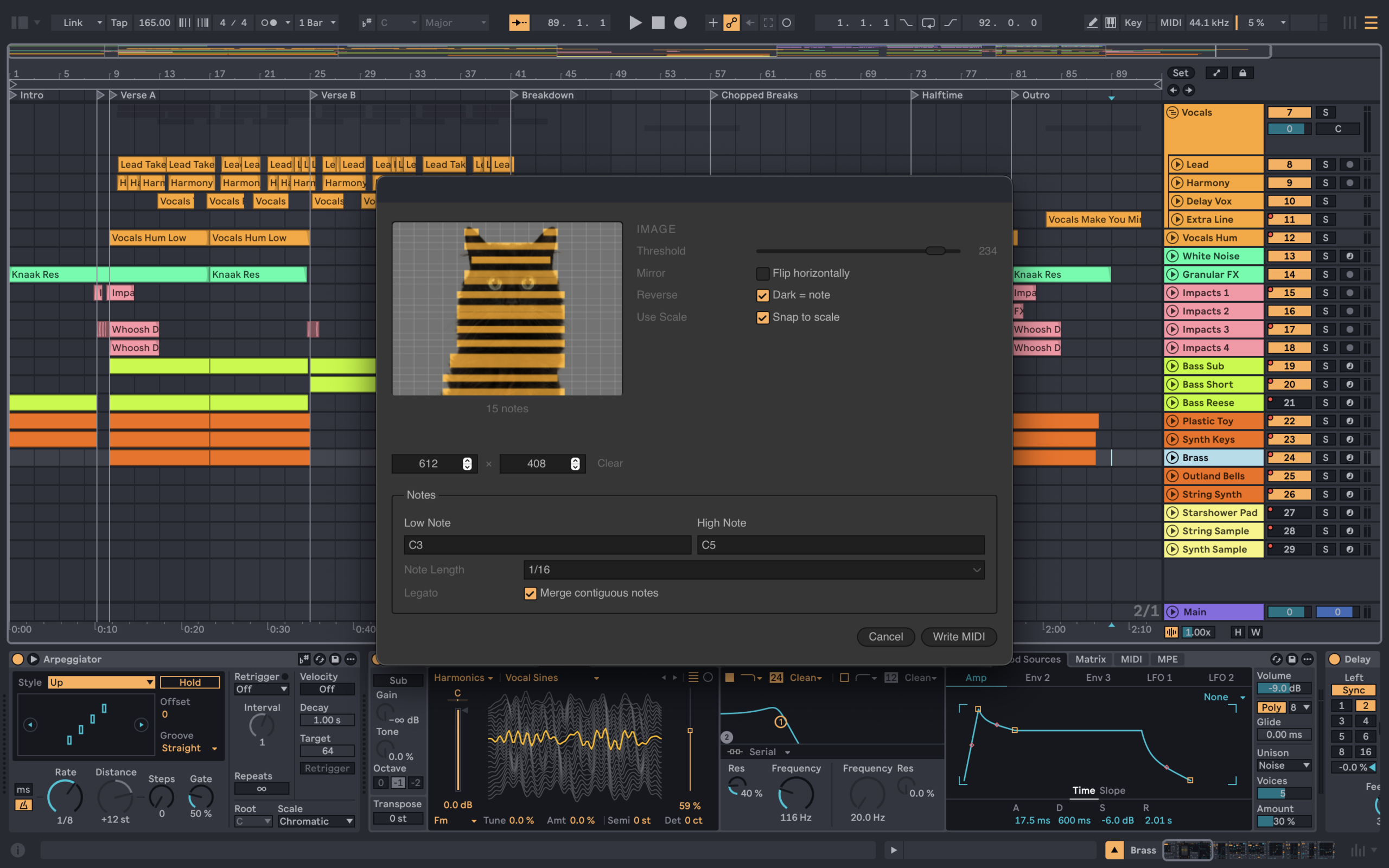
You can turn images into MIDI, an idea we will never, ever be able to escape, much like you’ll never be able to use your computer without your cat.
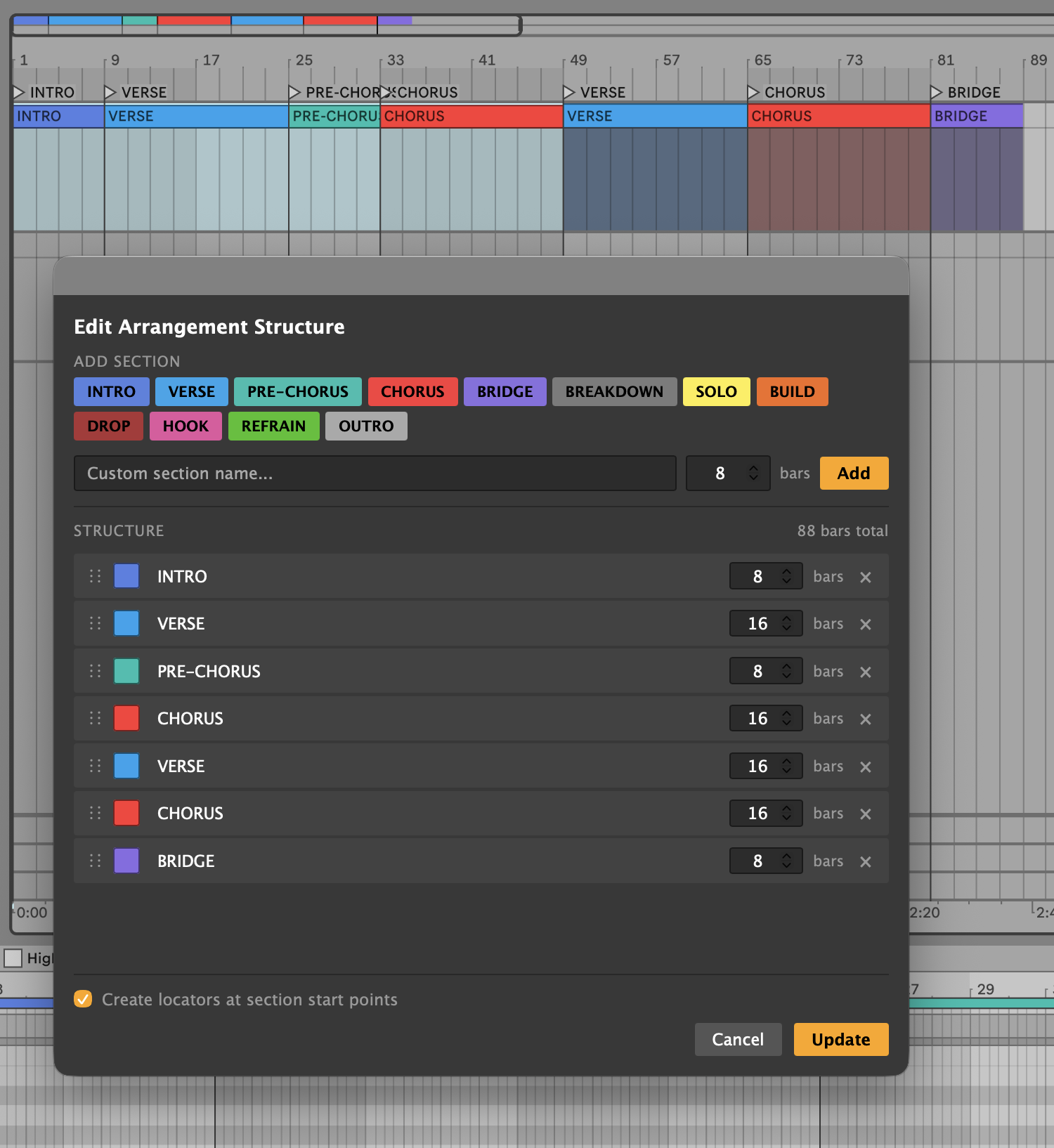
Create an Arrangement Structure — an example of how some of the simple capabilities of Extensions can be combined into powerful, full-fledged functionality. This section lets you define sections (via basic song structure names or your own custom sections) then define regions and Arrangement Locators by number of bars:
Those are some of the “fun” examples. Some of the basic examples from the documentation are also pretty compelling cases:
- Adding items to the right-click menu.
- Opening a modal dialog, progress dialogs, etc.
- Create a bunch of audio clips and import audio.
- Swap different warp modes on Clips in Live just by right-clicking them (oh, yeah, why doesn’t Live do that?)
- Strip silence from a bunch of audio — rendering right into the Arrangement.
Danger, Will Robinson! The documentation is detailed, but I would not describe it as entirely beginner-friendly yet. This assumes a fair amount of existing coding experience and comfort with the command line and npm — none of which your friendly local LLM is going to be able to replace. If you are a beginner and still curious, I’d give this a little time before you dive in. Try bundled extensions from other folks with the beta, maybe download the files and peek around without worrying about doing too much with it yet, and expect some more newcomer-friendly materials via Ableton, the community, and CDM for that matter, soon.
What it can’t do (so far)
Ableton describes this as an “experimental” feature. (Y’all, we’re totally experimental! Bring it on!) But there are some things the Extensions can’t do in this first release.
For now, there’s no direct integration between Max for Live and Extensions, though I’m sure we’ll very quickly see Max for Live developers bundling devices with Extensions to perform particular tasks.
Extensions don’t have a way to access Tuning Systems. (I’m honestly not sure that they even make sense, but addressing other ways of tuning the DAW is important — a topic we’re discussing at Ableton’s own headquarters in a few hours, literally, today!)
There’s also no way to run an Extension programmatically, like when Live starts up or when you perform a task, which rules out some full automation ideas like randomizing the tempo and key signature on launch, or slicing up audio you’d drop on a droplet. (I’m thinking of AppleScript, Automator, and Actions, in Apple’s decades long on-again off-again scripting and automation efforts.) I wouldn’t be surprised if this is something we see soon; for now the contextual menu should keep us busy enough.
And most importantly, as I’m sure people are wondering: Live Extensions for now has nothing to do with hardware or control surface support. Obviously, anyone interested in hardware integration would love this kind of modern interface, Node.js support, and debugging in place of Ableton’s current proprietary OEM licensing approach and the unsupported Python API. The Python API has to stay, as it’s the basis of other interactions and the foundation of hardware support. But Extensions looks like the future, and I hope we’ll see Ableton support it as a pathway for better hardware integration.
Now, all of this being said, it’s a good thing that Ableton isn’t trying to do too much at once with this API. It’s important to ship, get feedback, make adjustments, complete documentation. Let me say that again: it’s important to ship.
And this is a fantastic start. It’s about time Live had this kind of functionality; it’s perfect for its user base.
To give credit where it’s due, see also the scripting APIs in Reaper (multiple languages!), Renoise (Lua API), Ardour (Lua API), this is not a complete list, that’s off the top of my head, leave me alone. I think if you compare these different solutions, you’ll notice that they’re in fact not the same. We can also have a fun fight between Lua and JavaScript some time. Yes, Reaper is the only DAW — to my knowledge — to name its scripting environment after Jesus Christ and run the thing on a giant wooden crucifix. And no, I did not just make up the thing I just said. But welcome, Live! Amen!
Max for Live, for its part, is going nowhere. It’s still the solution for building devices (and Generators and Transformers). And yes, it also supports Node.js — but that’s great, because it means you can leverage your code skills across these two environments, good news if you intend to learn or if you know your way around already.
In fact, I’d still say Max for Live is probably where most users will want to begin. It’s still your home for building synths and effects and sequencers, and visual node-based editing (not to be confused with Node.js) is a great way to learn and to think about signal flow.
But I’m excited about this. Even we use it occasionally to do something fun or solve a problem, it breathes new life into a DAW that’s now well over two decades old. And sharing ideas I think will be really exciting — this coming from someone who already has a big backlog of cool Max for Live ideas. Plus it’s free for Suite users.
Human intelligence and brains continue to spawn new stuff. See you in the Extensions course.
https://www.ableton.com/en/live/extensions
Ableton Extensions Explore page
Ableton’s Discord Server (where folks will be chatting about this)
Questions? (Oh, I’ll bet you have questions!) Ask away!
That was a lot of text. You’ve earned this. I’m sure I’ll hear something like this in the Ableton offices later today. From a more innocent time, sort of.
Bonus — Ableton just added this video: