DeafMan’s creations for Ableton Live have evolved from a selection of cool retro themes to a vast library of complete color makeovers — a “visual system.” And there’s an insanely powerful new editor for managing themes, tweaking colors, creating customizations, and assigning color to tracks. It’s more than just customization: it’s a way of thinking about your workspace and music in hues and shades.*
DeafMan’s journey to get here began with custom themes based on retro 90s UNIX-based OSes, especially from Silicon Graphics. That hit a nerve with readers, it seemed, both those who had the SGI and those who longed for a different palette.
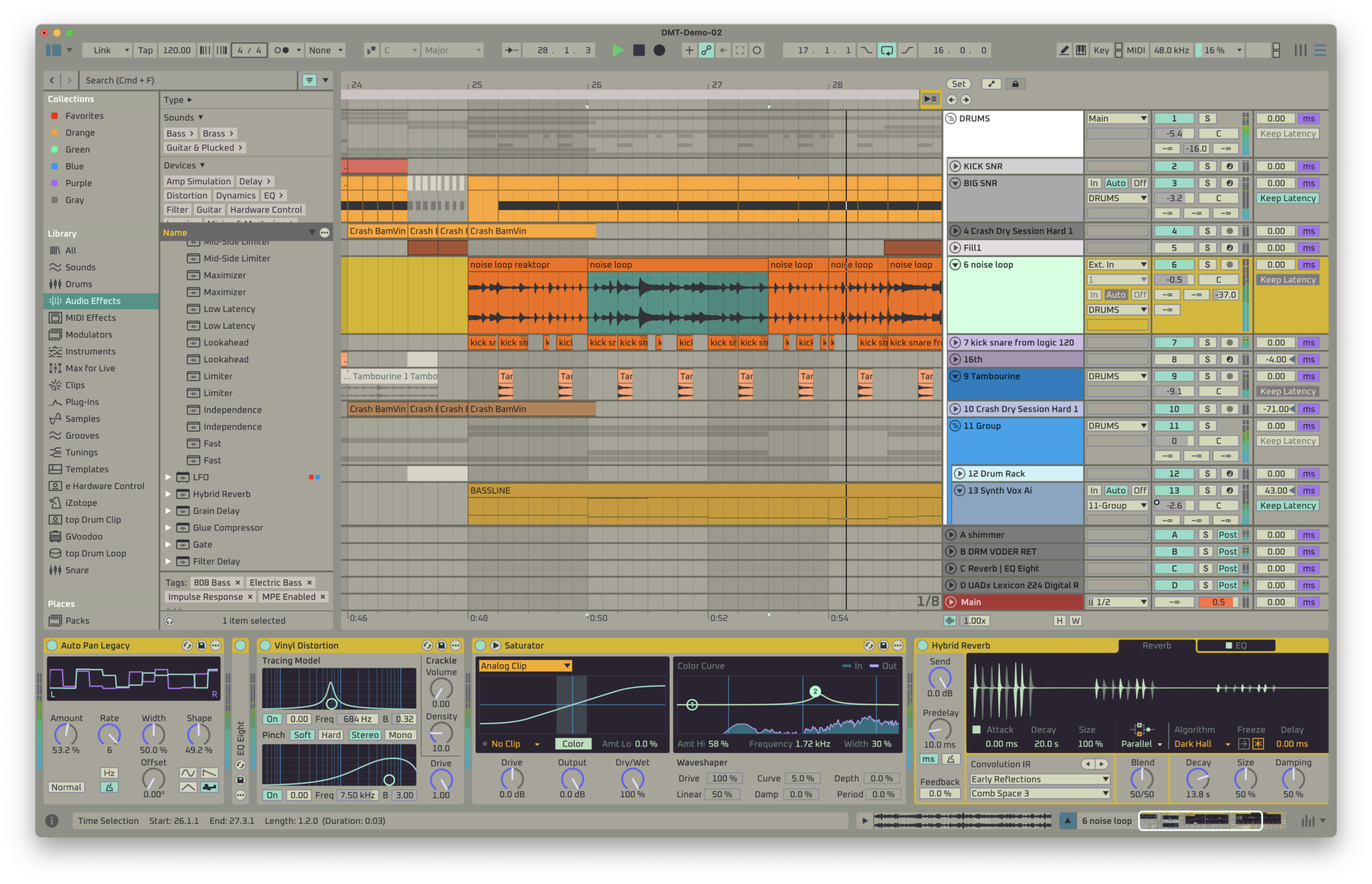
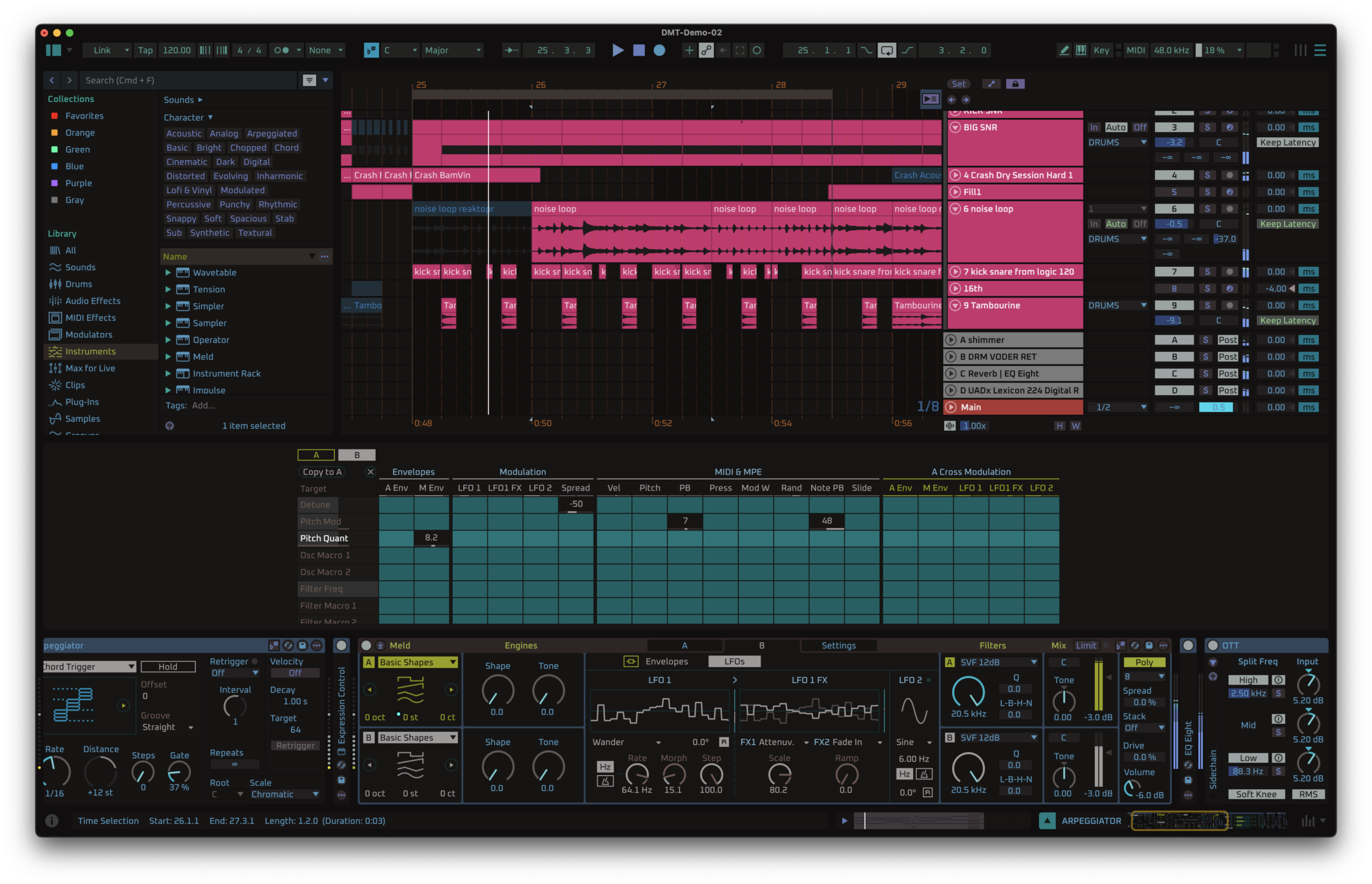
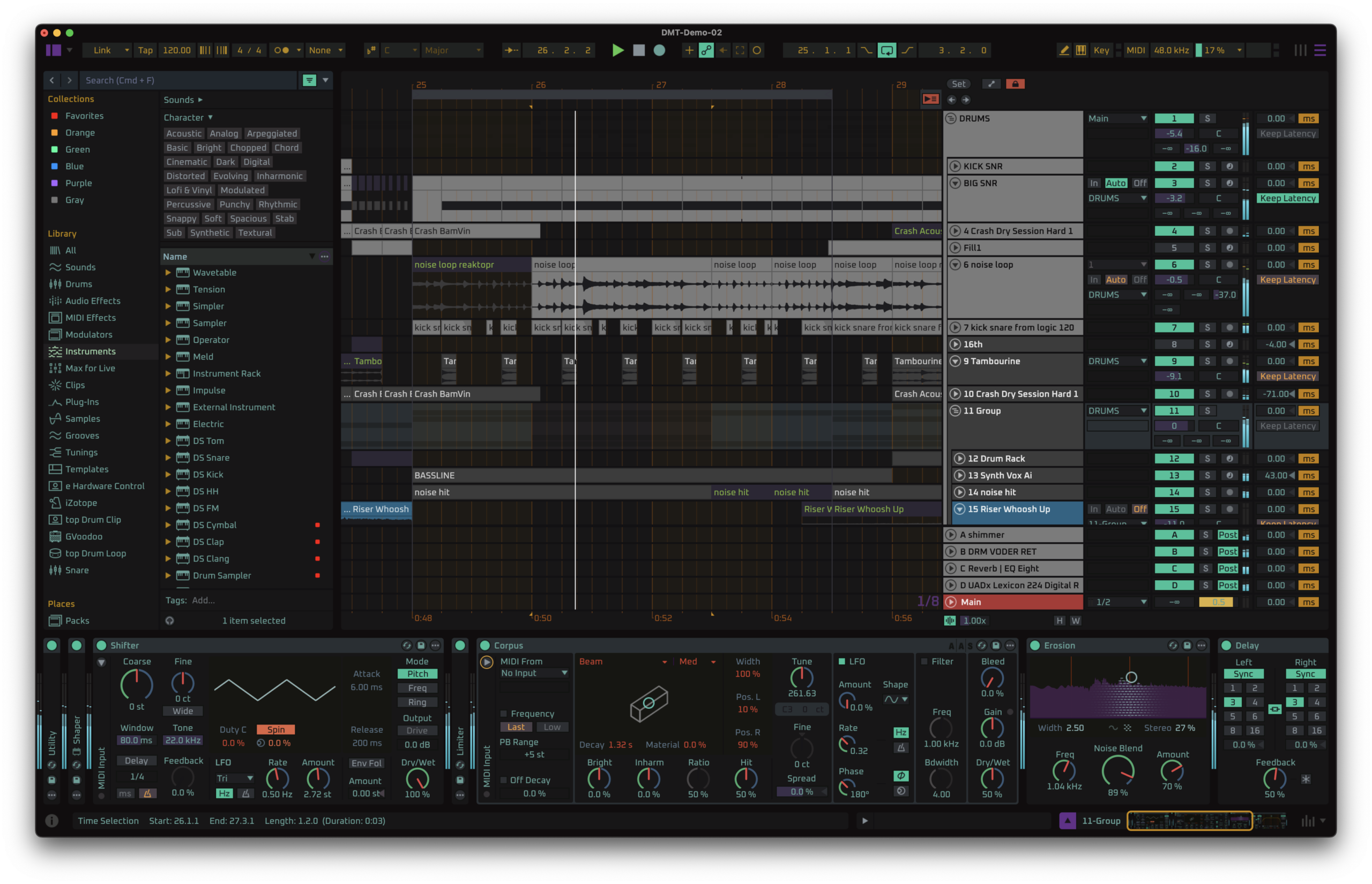
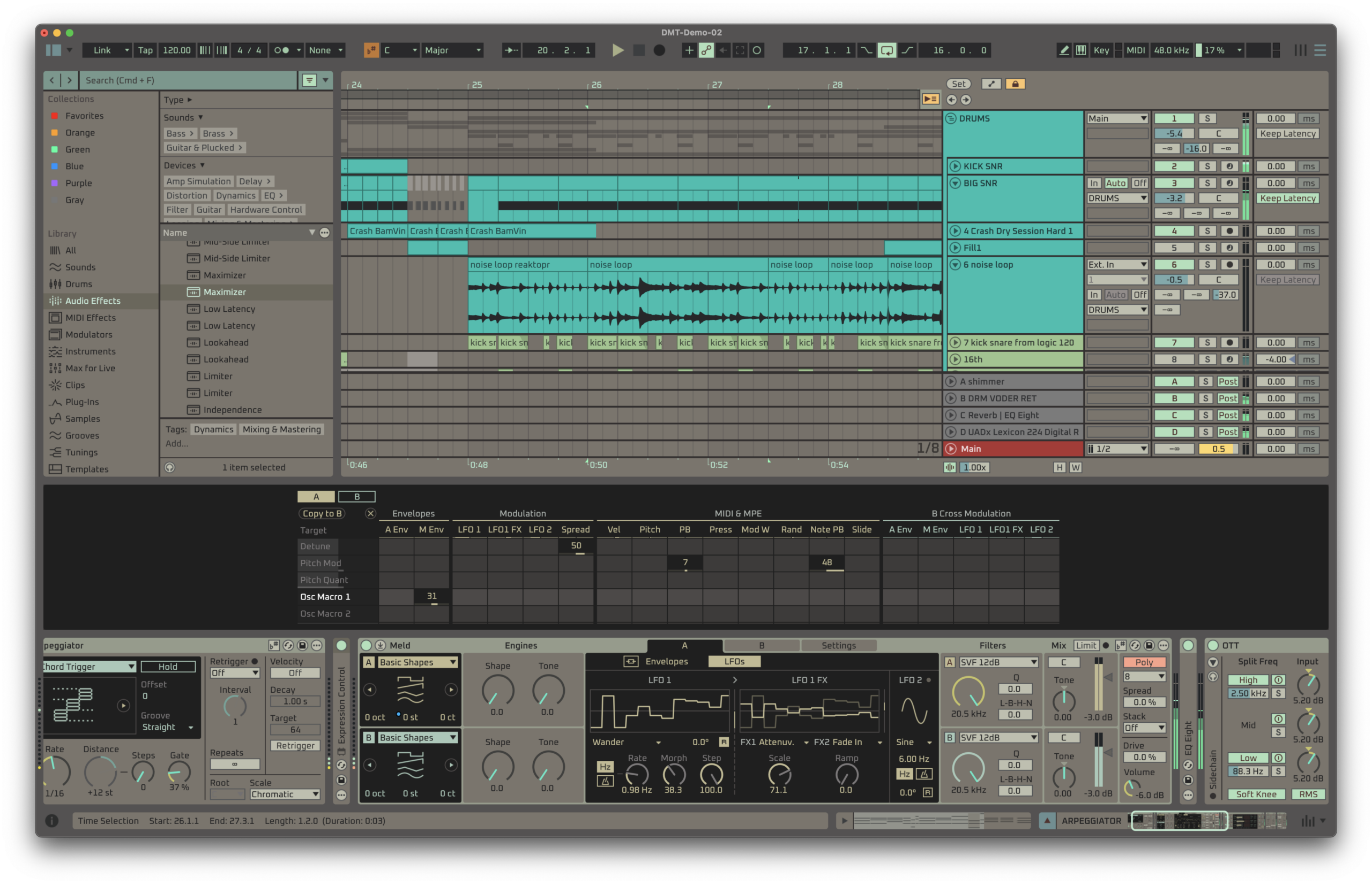
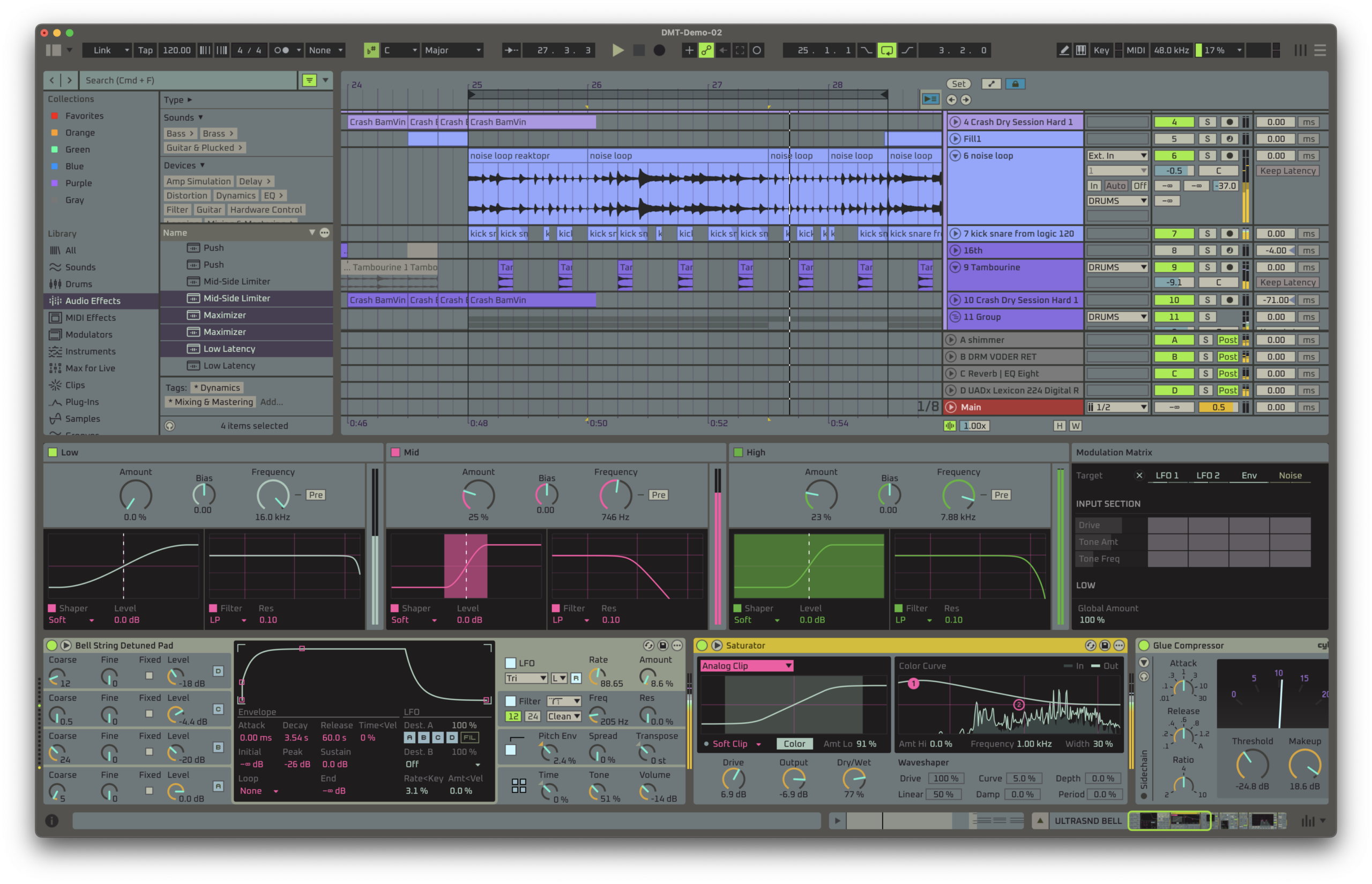
But now, DeafMan’s library of themes and tools has become more. In addition to a growing library of themes for all tastes, imaged here, you now have a companion utility called DeafMan Tools (DMT). We’ve seen other editor tools for Ableton Live themes, but this one is far, far deeper — and it’s interactive, so you can pull colors from the UI and make changes to the UI with near-instant updates, so you have visual feedback.
It’s all really daft — I don’t know that I’ve seen anything quite like this. So I had an extended chat with Clem just to go over everything he’s done, and how you can use it quickly and creatively. It’s like Live for people who love SimCity 2000 and SIGGRAPH.
DeafMan Tools site with platform, themes, media/tutorials, and FAQ – macOS 14+ required for DMT (the themes are standard Live themes)
Complete: full DMT editor and all themes
If you buy something from a CDM link, we may earn a commission. Some images courtesy Deafman.
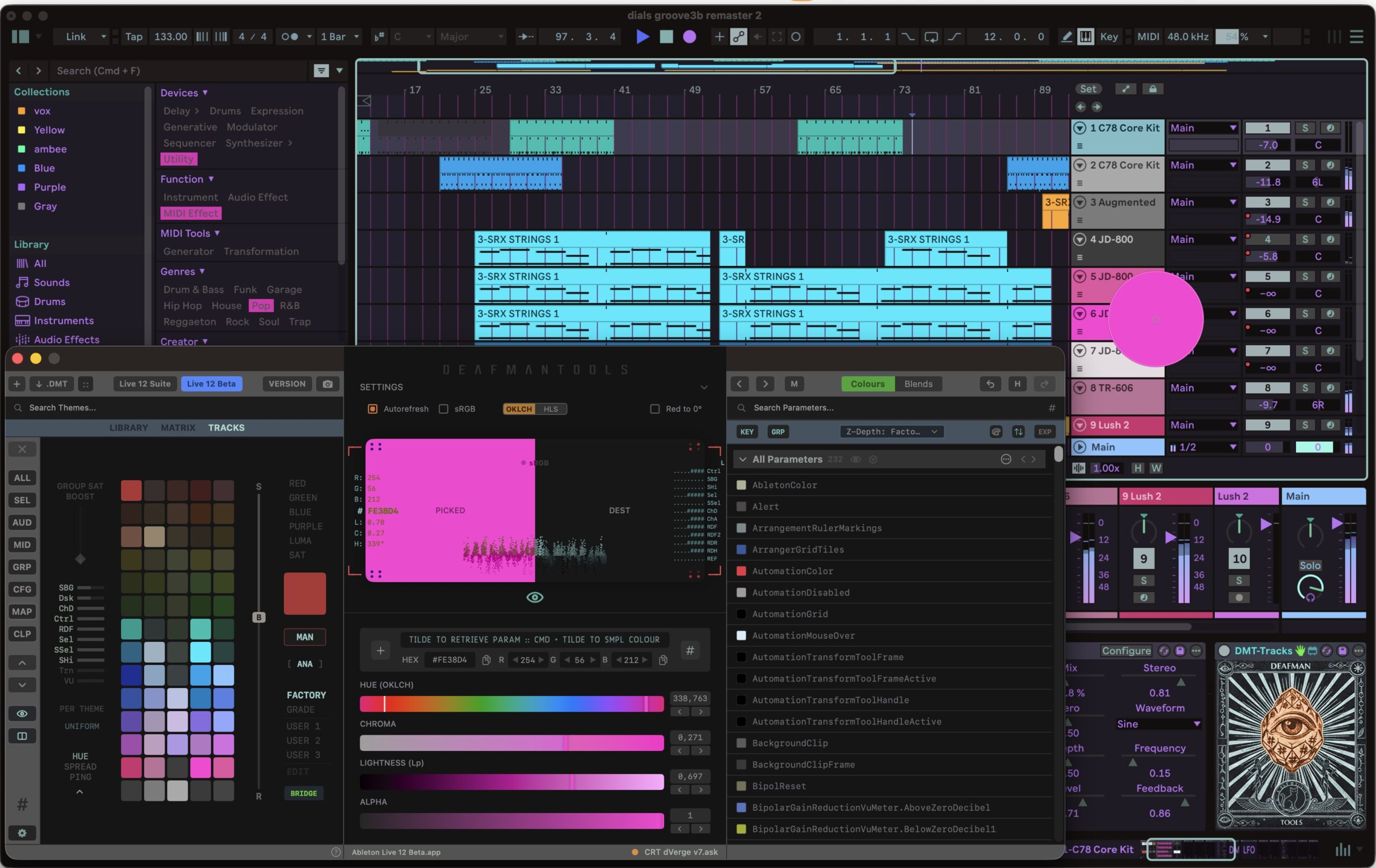
Making music with colors
First, a reflection: all of this does have a musical function. For those staring at the display all day, the tasteful-but-conservative stock Live themes can just be, well, dull. Ableton did a lot of work on accessibility and contrast, but I can also report, having been through a couple of eye surgeries in the past year, that there’s no one-size-fits-all solution for eyestrain, let alone aesthetics. (And hey, some of us want both accessibility and good looks.)
I don’t know if folks have genuine synesthesia, a more precise concept now called “ideasthesia” (which can be associated with colors — see below**), or just OCD and/or a desire to procrastinate. But regardless, it can be a genuine stumbling block when the track colors just don’t match what you feel.
You can approach this on a few levels:
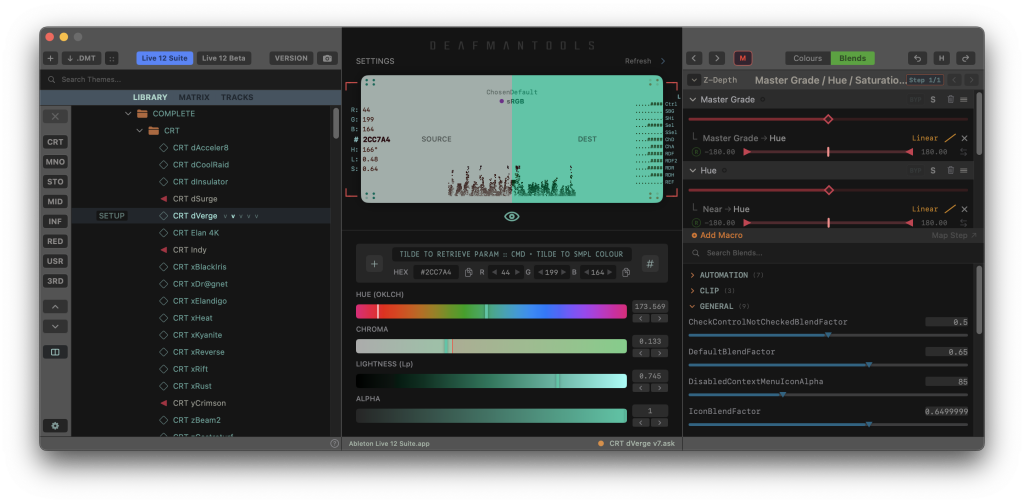
Themes sets. DeafMan has different packs focused on refined “studio” looks, light and gray themes, 1990s workstation-inspired color sets, dark and ultra-dark themes, and more “experimental” colors, though even that last set is often really usable.
Tweak colors and fonts. DMT gives you various tools to quickly adapt those themes. Love a theme, but hate one detail? Wish you could grade things? Those tools are there. You can use custom DeafMan fonts, too — and now Google Fonts, as well. And it’s designed so you can do this in a quick gesture.
Ultimate customization. Use a color picker, build up themes from scratch, use detailed tools to generate options.
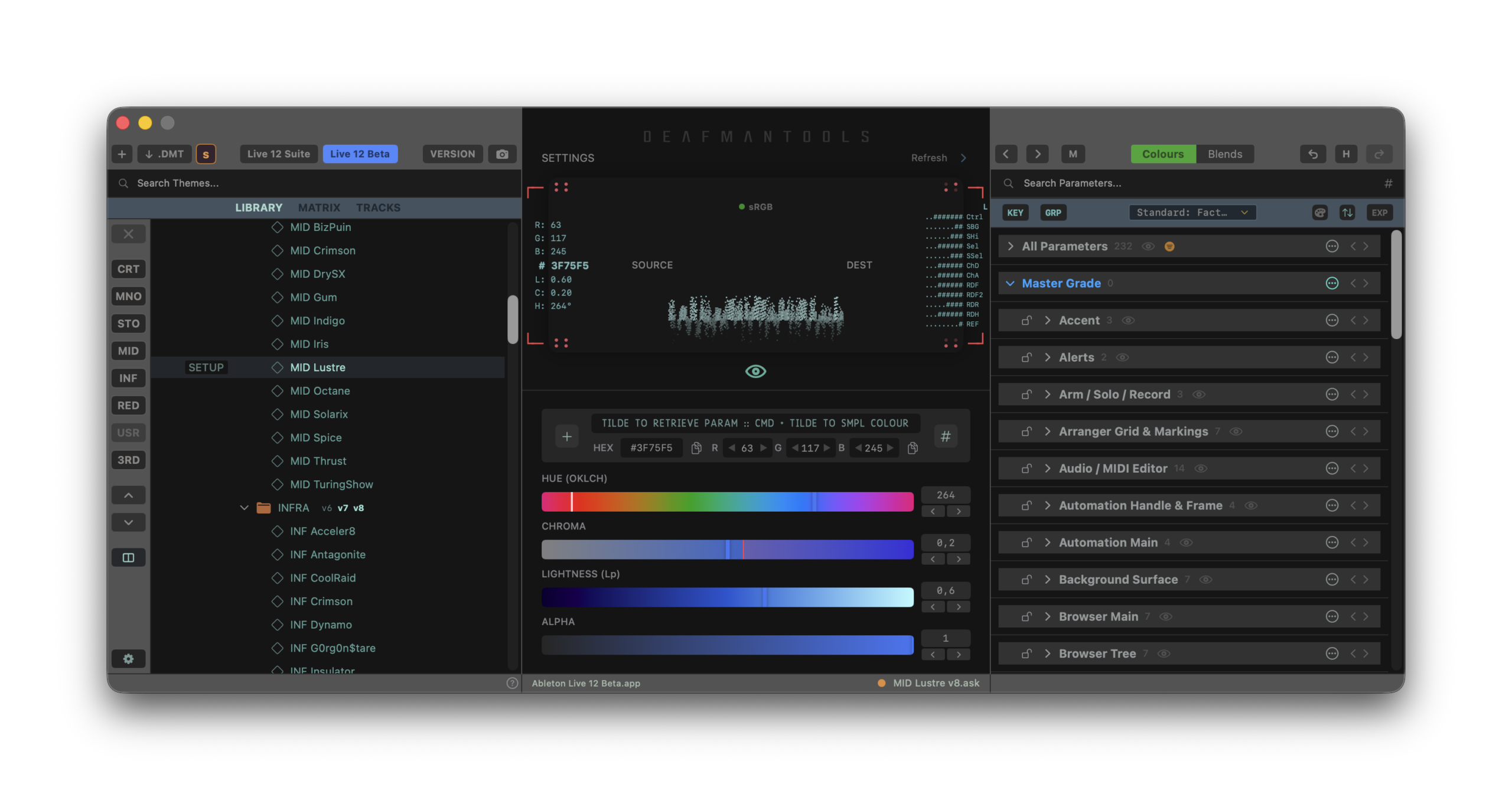
DMT tour
DMT is a futuristic, spaceship-HUD interface with loads of visualizations and options for the color obsessed. It’s a little intimidating at first, but you can click the eye icons to collapse it down to a smaller view. You can also keep it on top. The idea — bring it atop your Live interface, make a quick theme change or color your tracks, and continue.
The DMT editor comes with the complete collection package, which comes with the full set of themes.
Despite that complex interface, it can actually save you time tweaking colors — a keyboard shortcut or a quick menu selection, and everything automatically changes color.
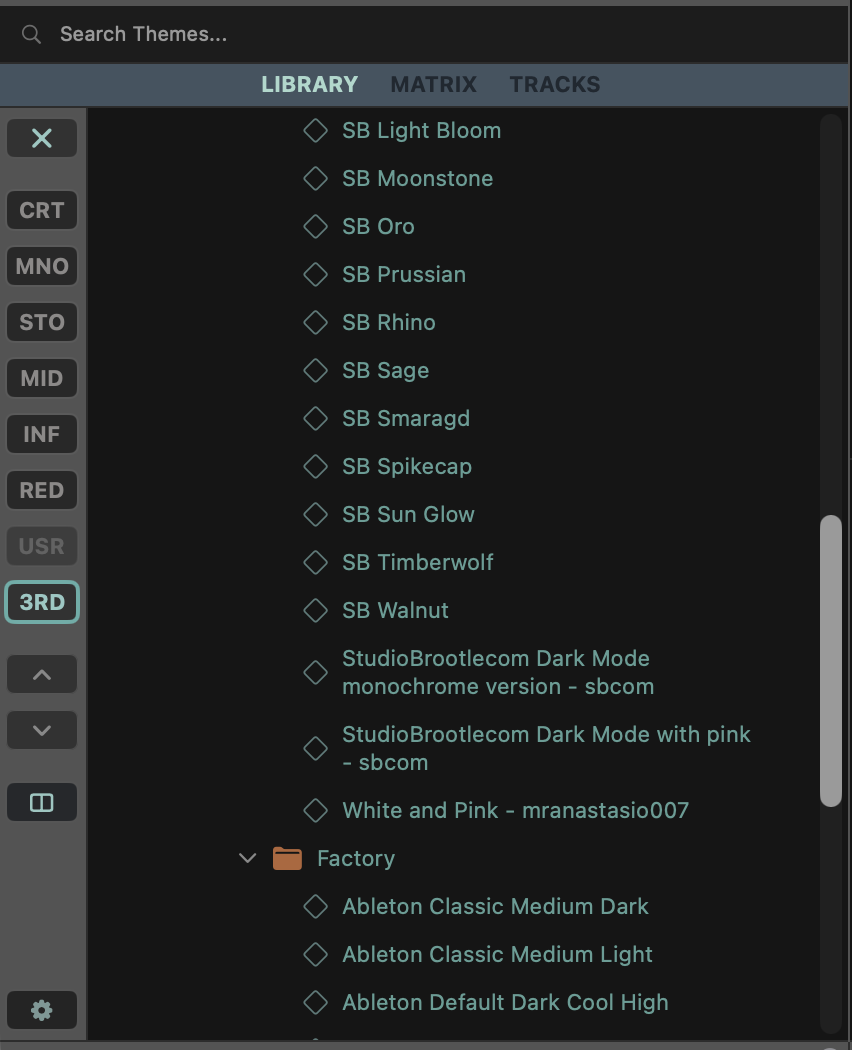
Library of themes. DMT makes it easy to swap themes quickly from DeafMan’s own library. You’ll also spot that you can import third-party themes — so I added favorites from SonicBloom’s free collection, for instance. (Unfortunately, you can’t put those in folders, but I hope that’s coming soon.) Your collection is retained between sessions, too. DeafMan updates the theming for everything in Live, including all Devices and Max for Live, too (even the Max editor window).
A tip on swapping: There’s a setting for how quickly Live refreshes in the background. Setting it to “aggressive” worked best for me, even with various Max for Live devices loaded in a project. But it will lag if you have a lot of other application windows open; I found that was only an issue if I left my browser open (Arc, Chromium-based) — probably because I have a zillion tabs open. Okay.
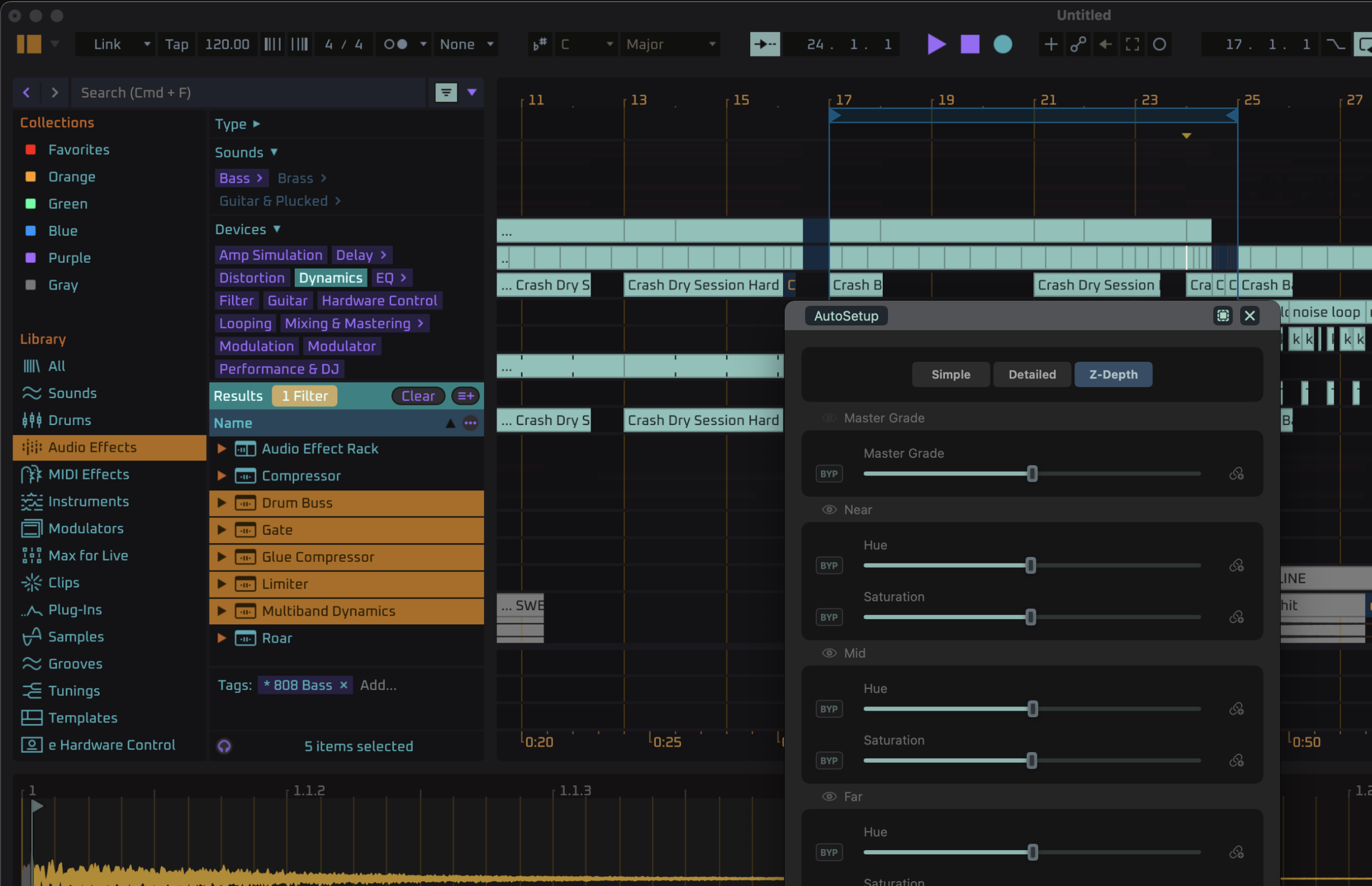
AutoSetup gives you an ultra-simplified view — so you can make overall tweaks or change the range all at once — for example, if the light in your studio changes. The Simple and (still somewhat simpler!) Detailed views let you just grab some easy faders. All of DeafMan’s own themes include these various. Z-Depth is unlocked with the Complete version.
It’s like having “procedural” themes, as DeafMan describes it. Find a theme you like, then dial in a variation you want.
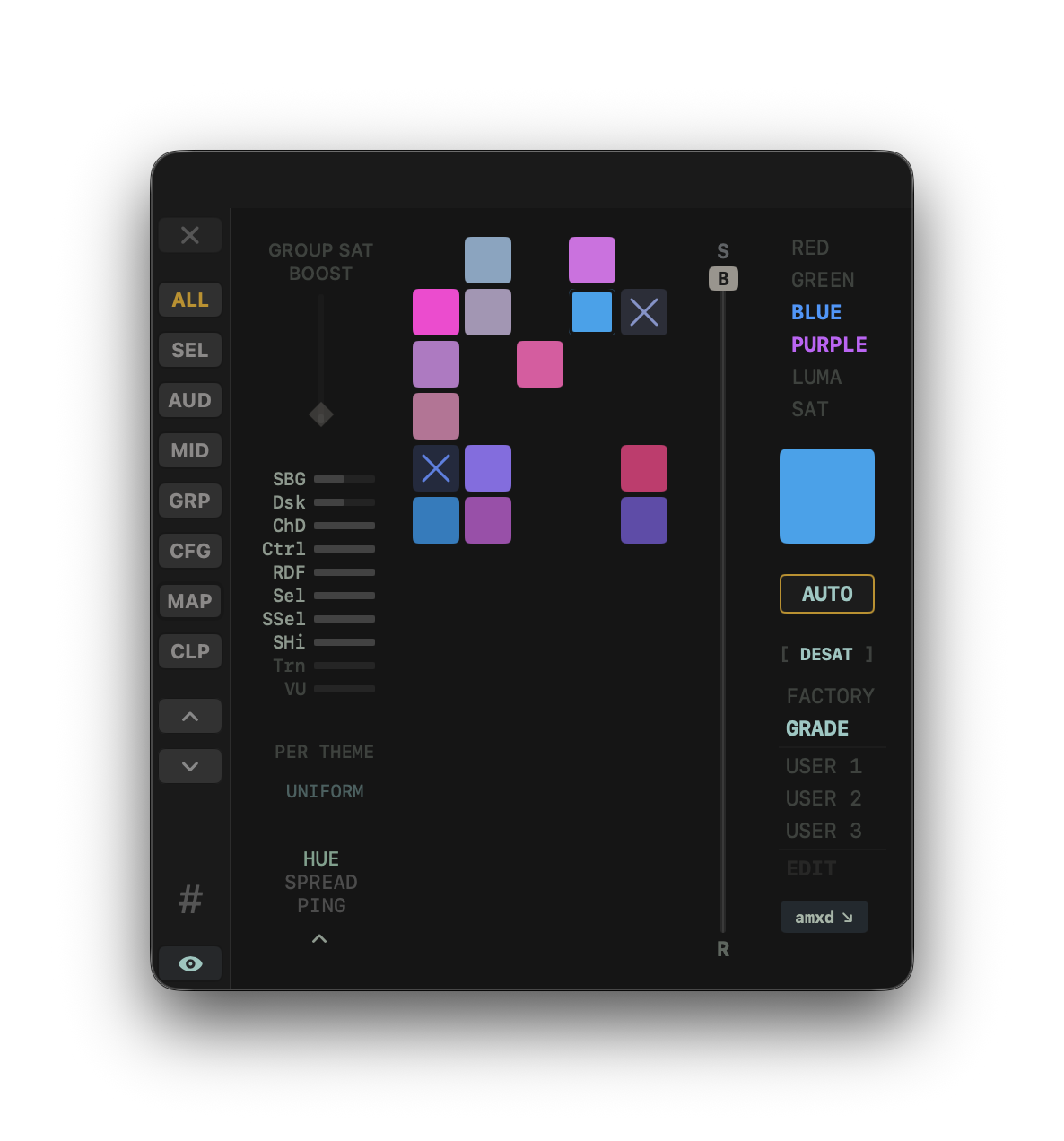
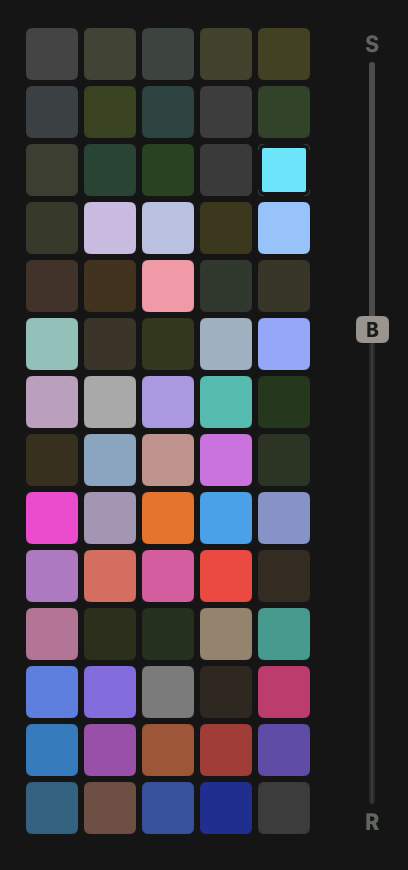
Grab color palettes and apply them to tracks, automatically. The floating window isn’t just for changing themes and recoloring UI elements; you can spin up custom palettes in a matter of seconds and then apply them to tracks. These also then keep nicely in tune with the theme, again, automatically. (Tracks can update automatically
The automatic link involves a Max for Live device, which has drag-and-drop access tucked into the bottom right-hand corner of the Tracks color panel (see the .axmd button):
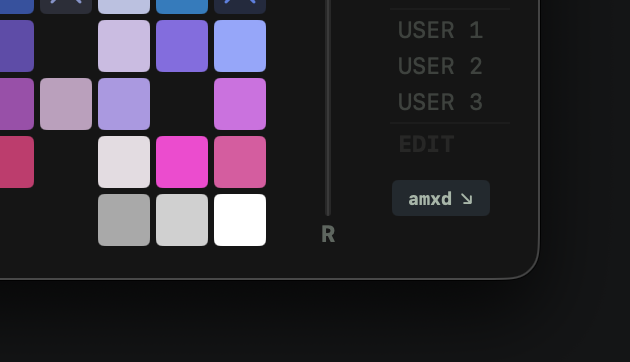
Drag that into the Master fader, for instance, and you can auto-update track color, instead of manually doing it and interrupting your workflow. That’s a revelation; it’s so easy that you may start to use color to organize your musical ideas. With the “bridge” activated:
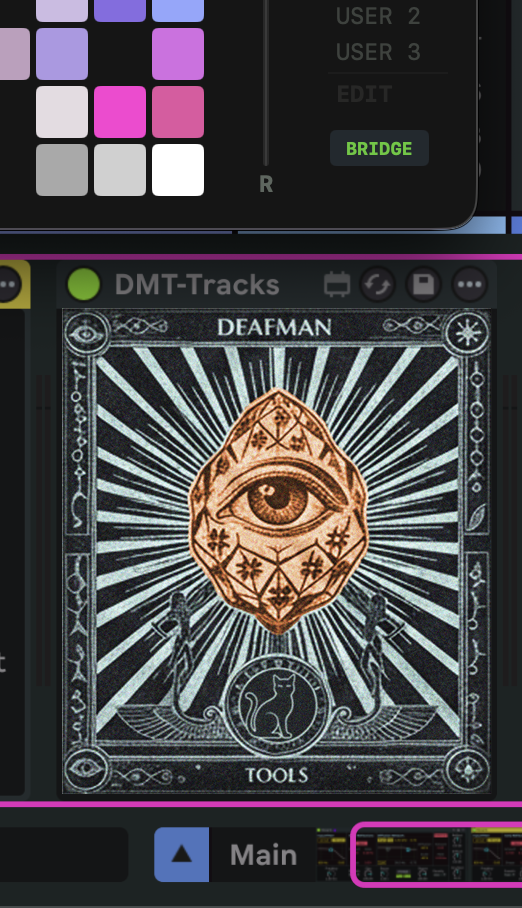
It’s all built for speed: drag and scroll through grades and hues.
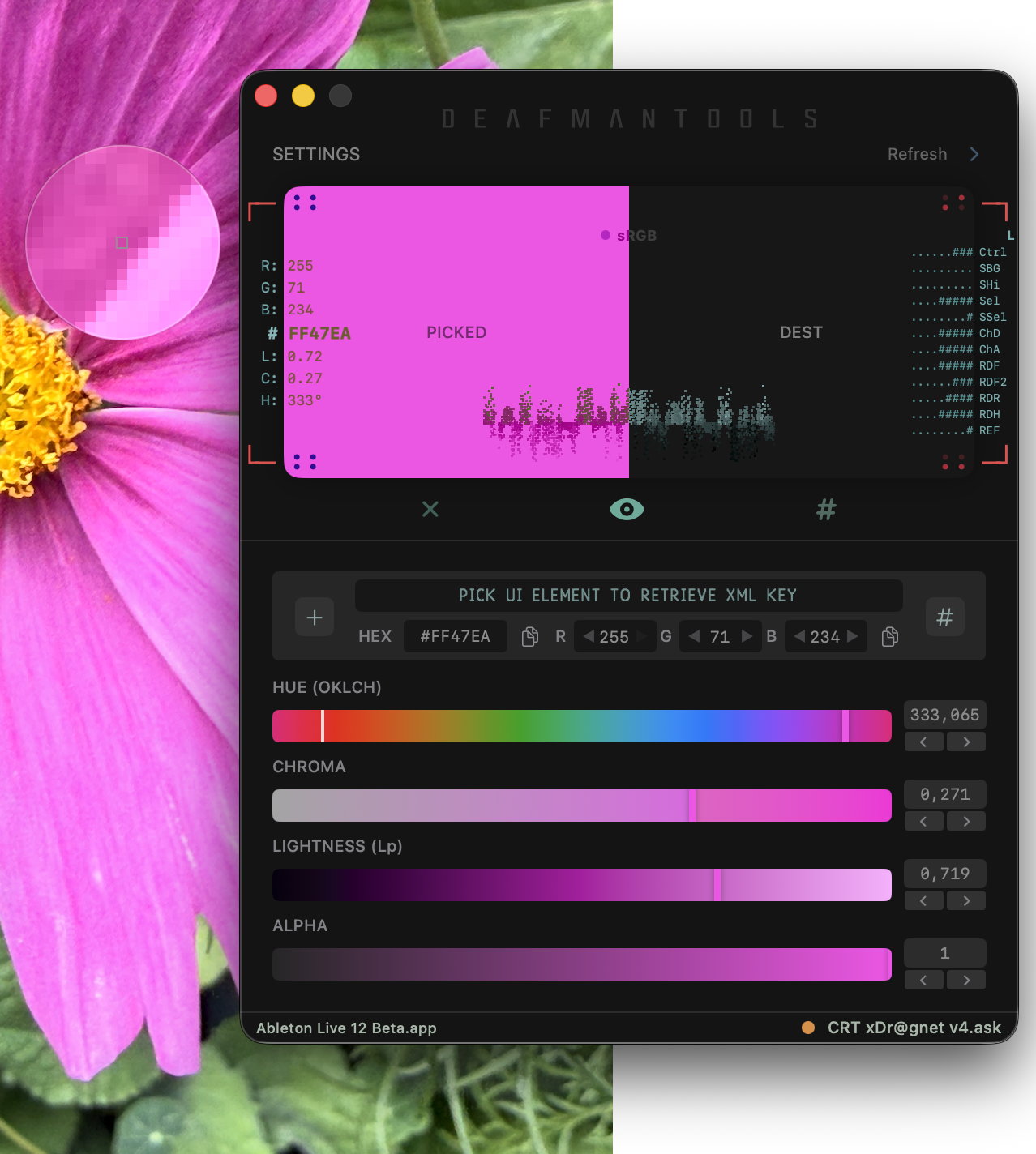
Color picker. Cmd+~ and you can grab colors from anything you see on your display. I have some ideas for this one; stay tuned.
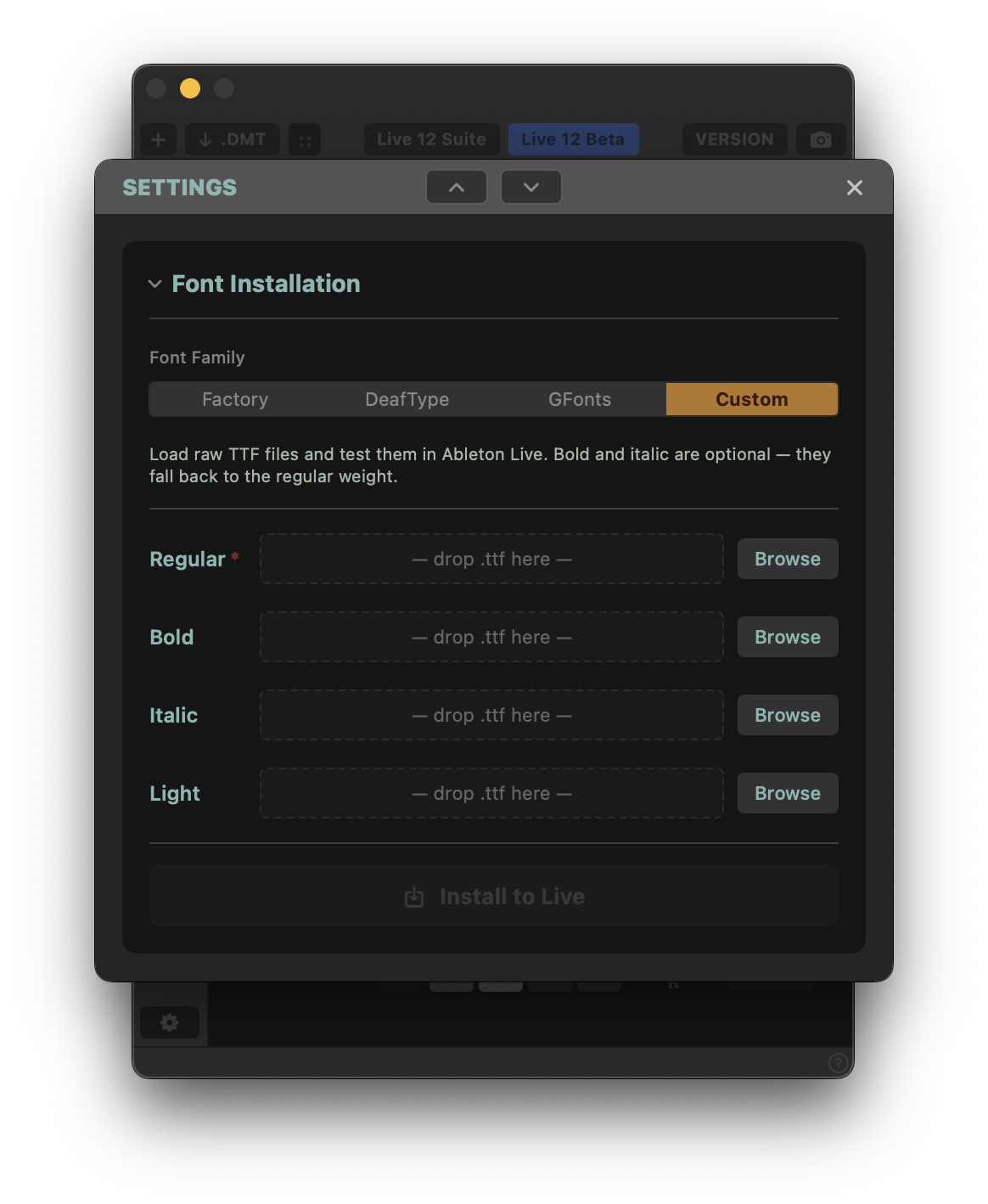
Custom fonts. I’m quite fond of DeafMan’s custom, retro fonts, but now you have some options: standard TTF import, or Google Fonts, which makes a lot of high-quality type available as open-source downloads. (Typefox is a terrific resource for finding the best selections. They’ve added a download of the top 40 now, as well.)
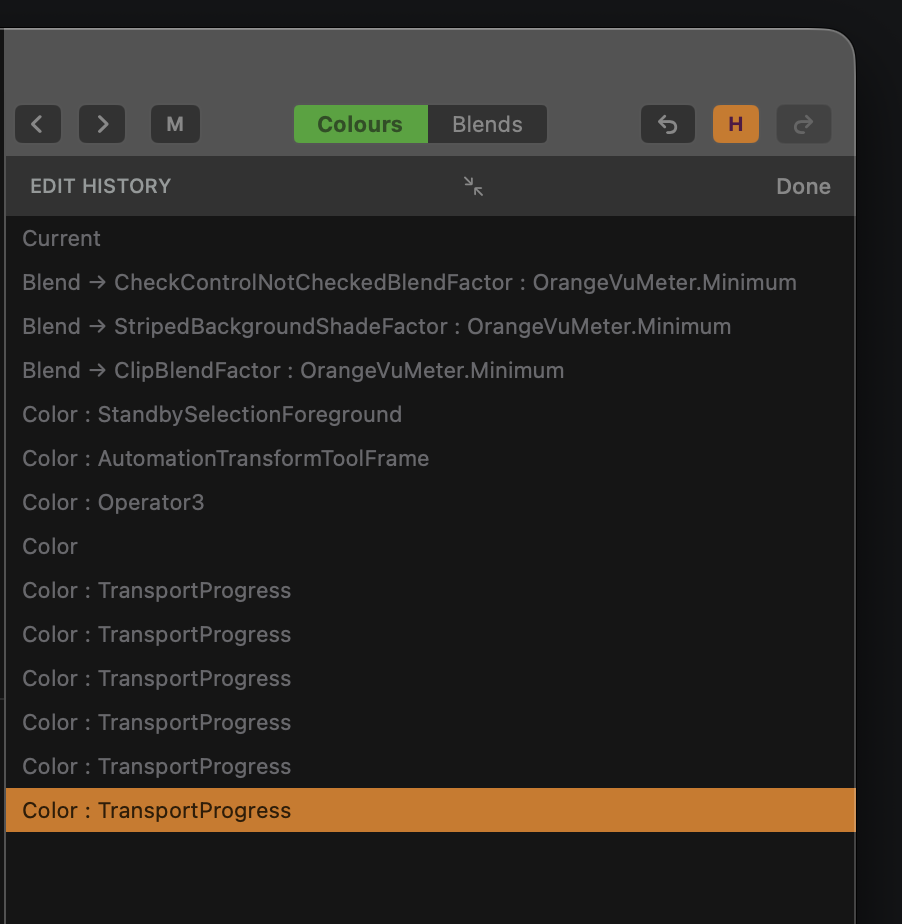
Every edit is non-destructive — with undo/redo, and now an undo history. So you can feel free to make any edits you want. Tweaks from DeafMan are also delivered online, so you stay up to date. That’s in stark contrast to the
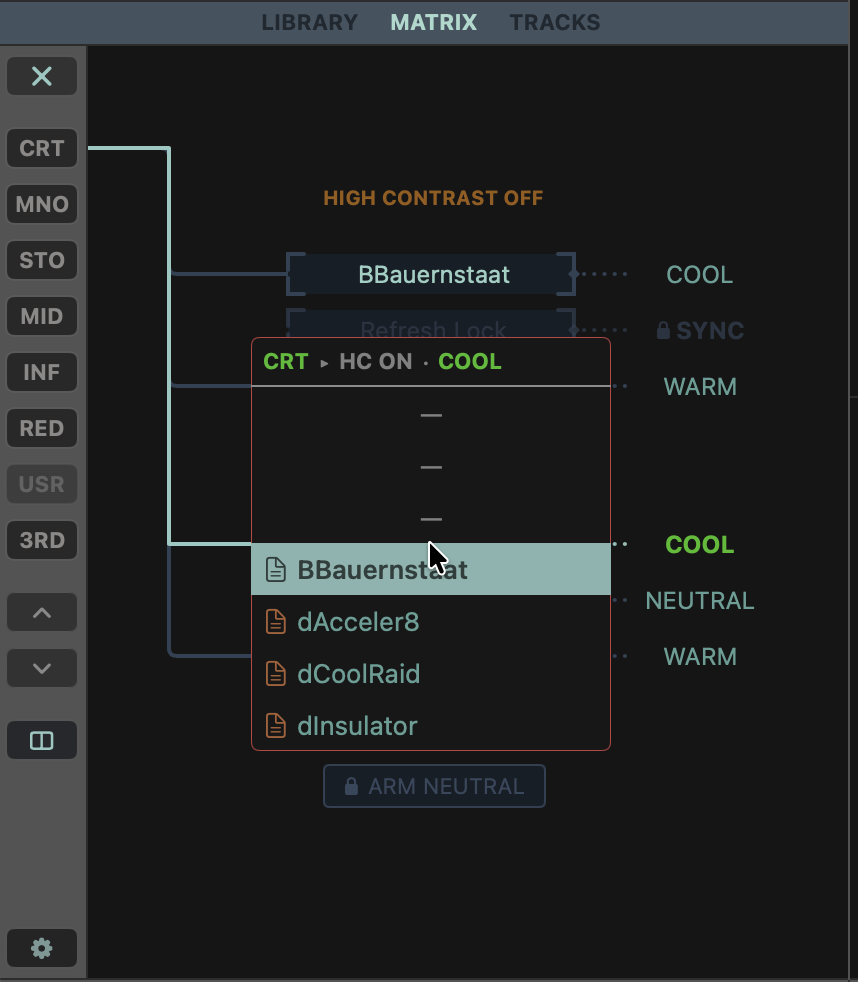
Matrix. If you want to skip this editor, you can also pick your favorite themes and add them to the color slots in Live’s internal preferences, using the Matrix. A pop-up lets you pick the theme you want for each. (It locks and hides the cursor, FYI — I was confused at first but told that’s a nod to how vintage Softimage 3D worked!)
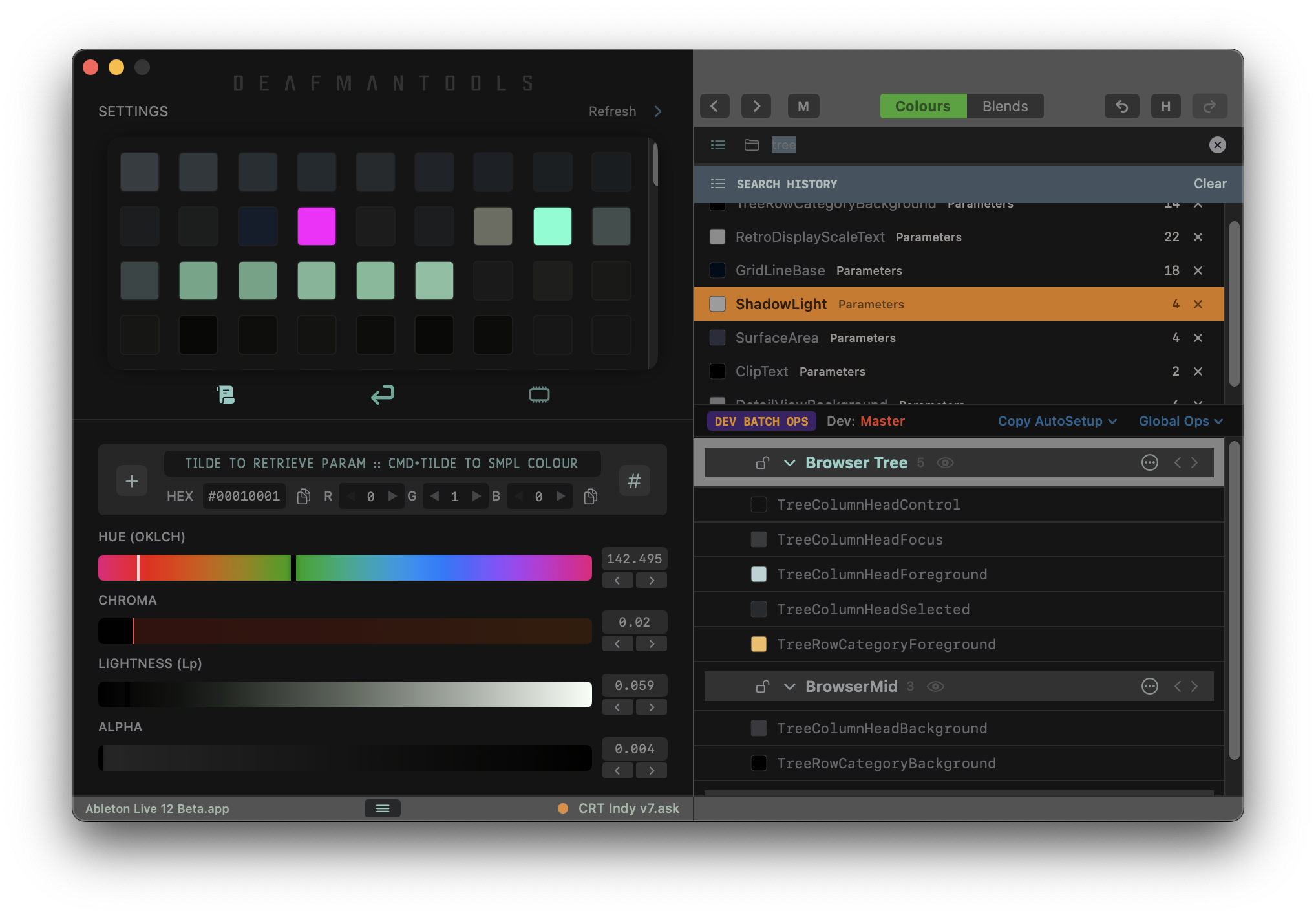
Advanced editing tools. You’ll find lots of other extras for advanced editing, covered in depth in tutorials. DMT is now a deeply powerful tool for creating your own Ableton Live themes.
Keyboard shortcuts:
Throughout:
escape (exit most current states)
right-click
cmd-click
~ (§) retrieve parameter
cmd + ~
Tracks:
alt-scroll: filter depth
cmd-scroll: group colour offset
ALL, SEL etc – shift scroll: colour range selection
On European keyboards,
Theme gallery
A few favorites. There are some gorgeous options for any tastes. You can choose an individual set with the automatic track colorization component of DMT, or get the full set with everything, including DMT editor and CRT themes:
CRT (exclusively with the full set)
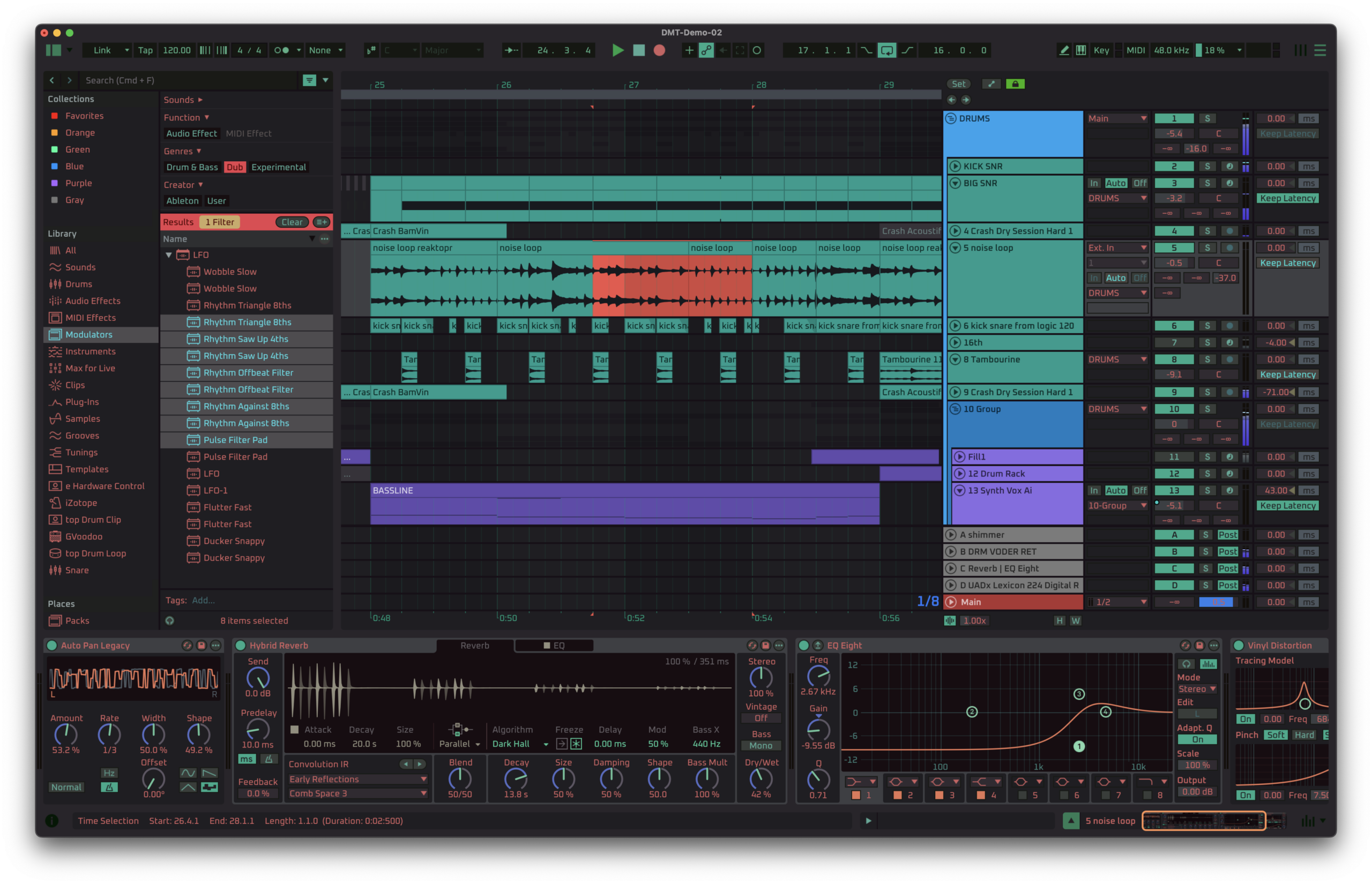
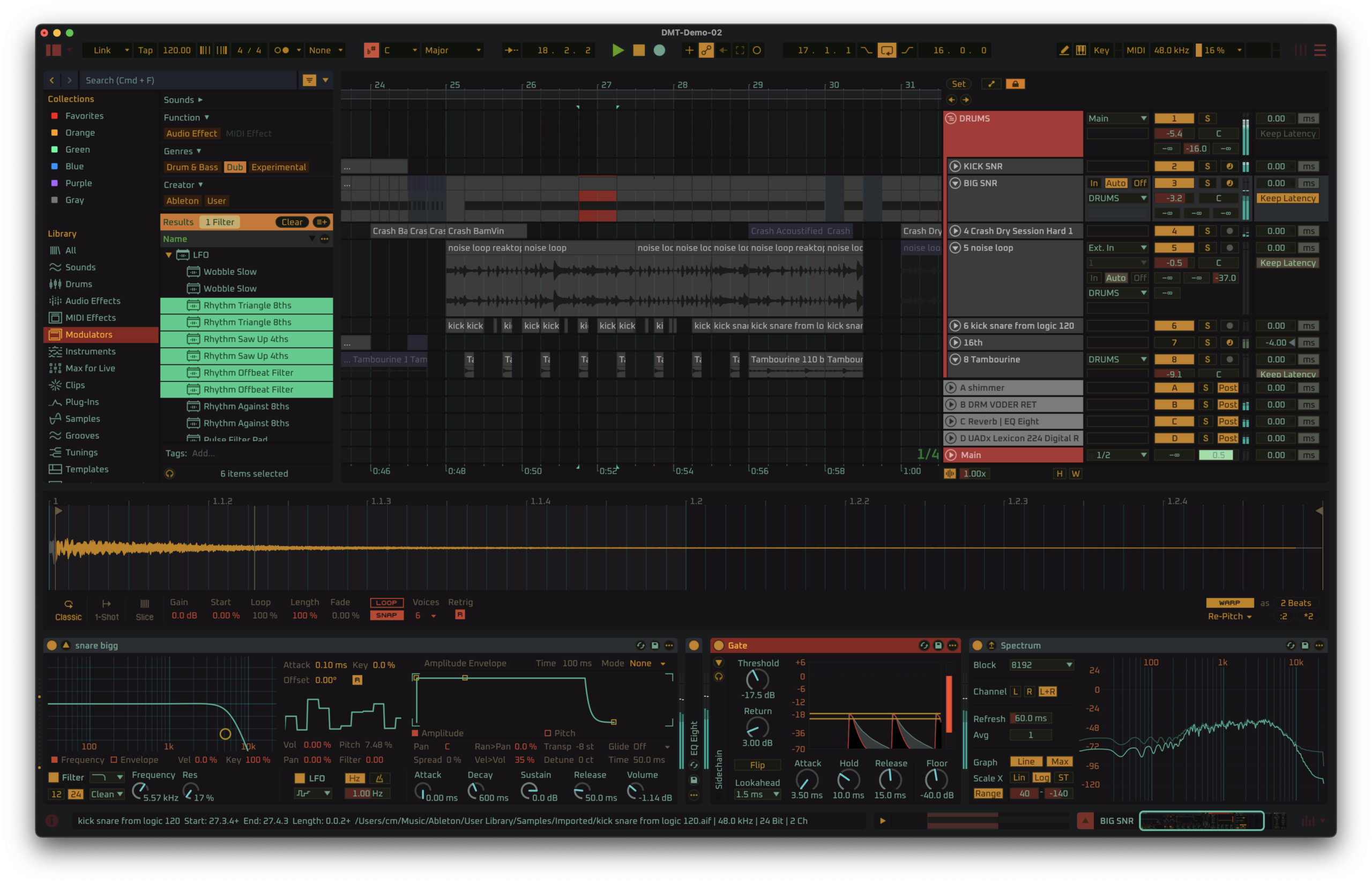
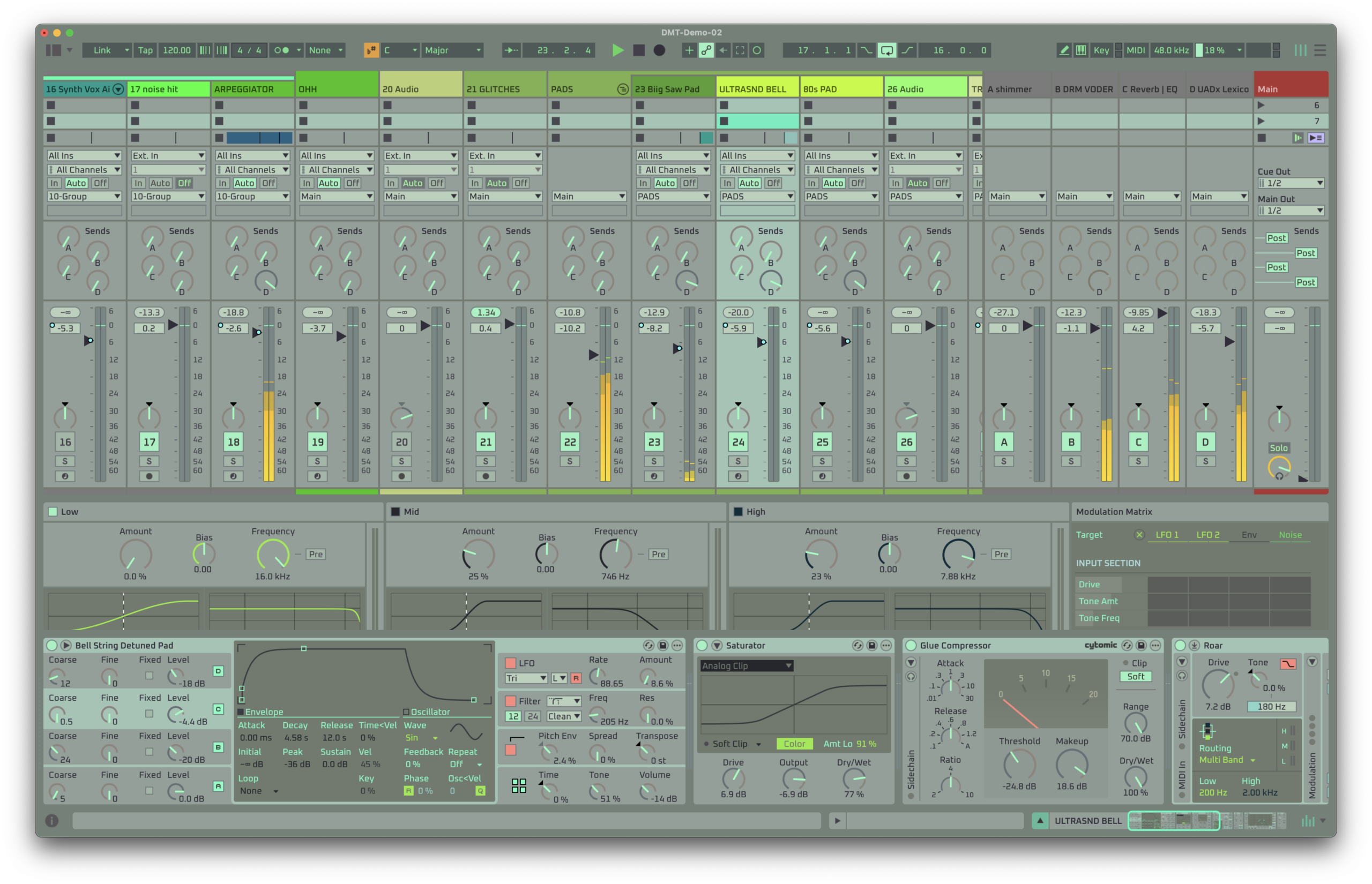
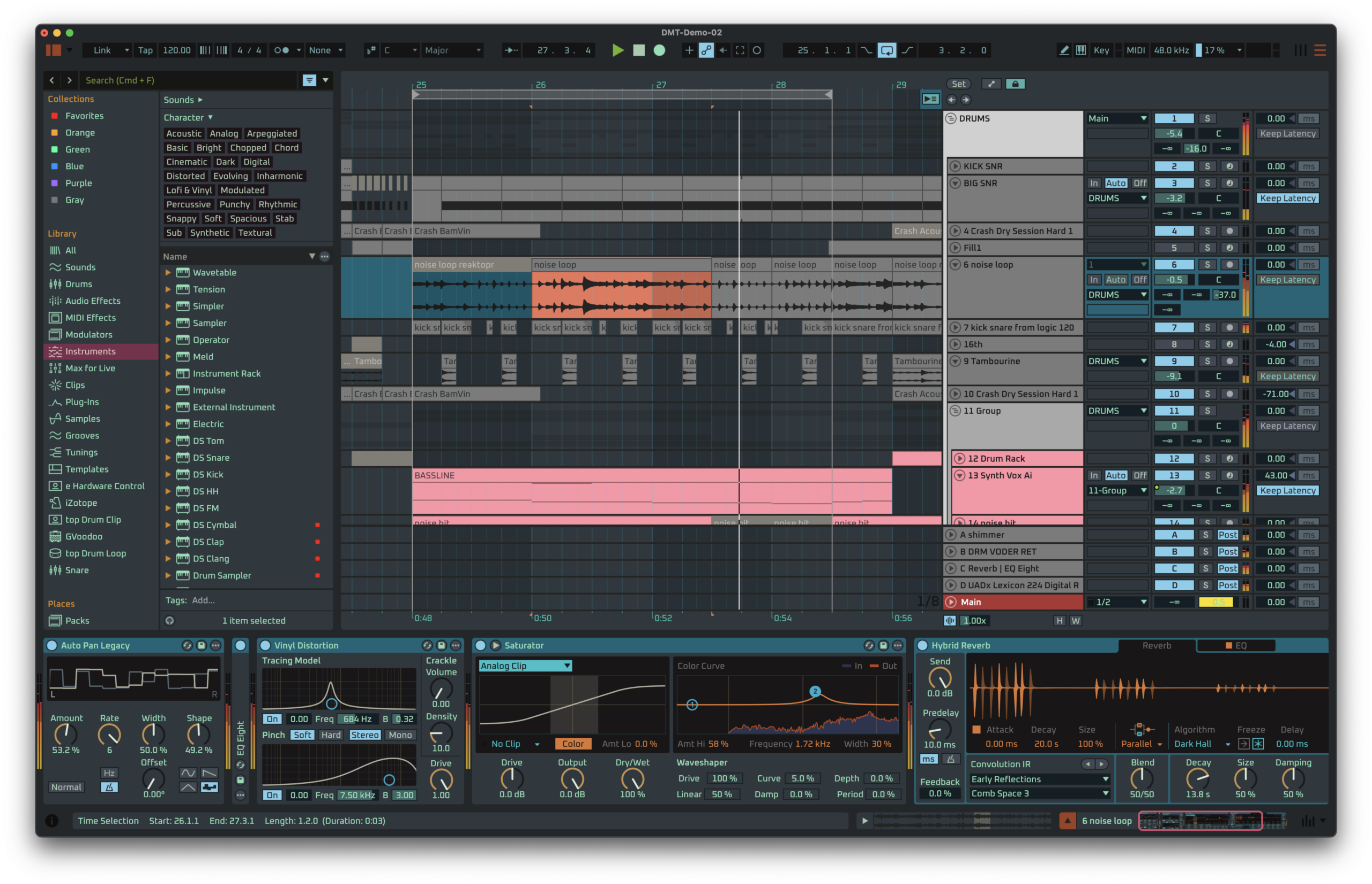
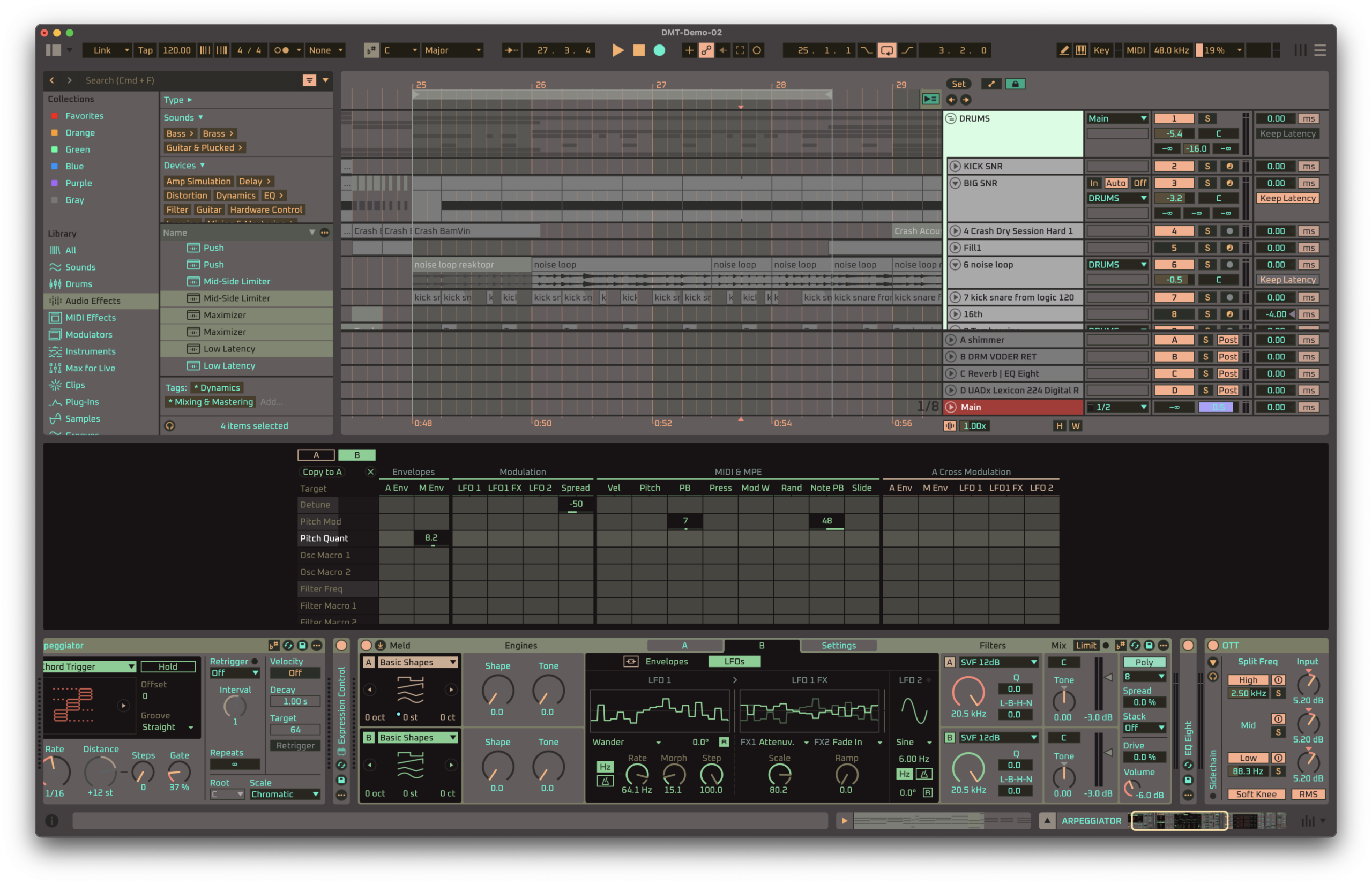
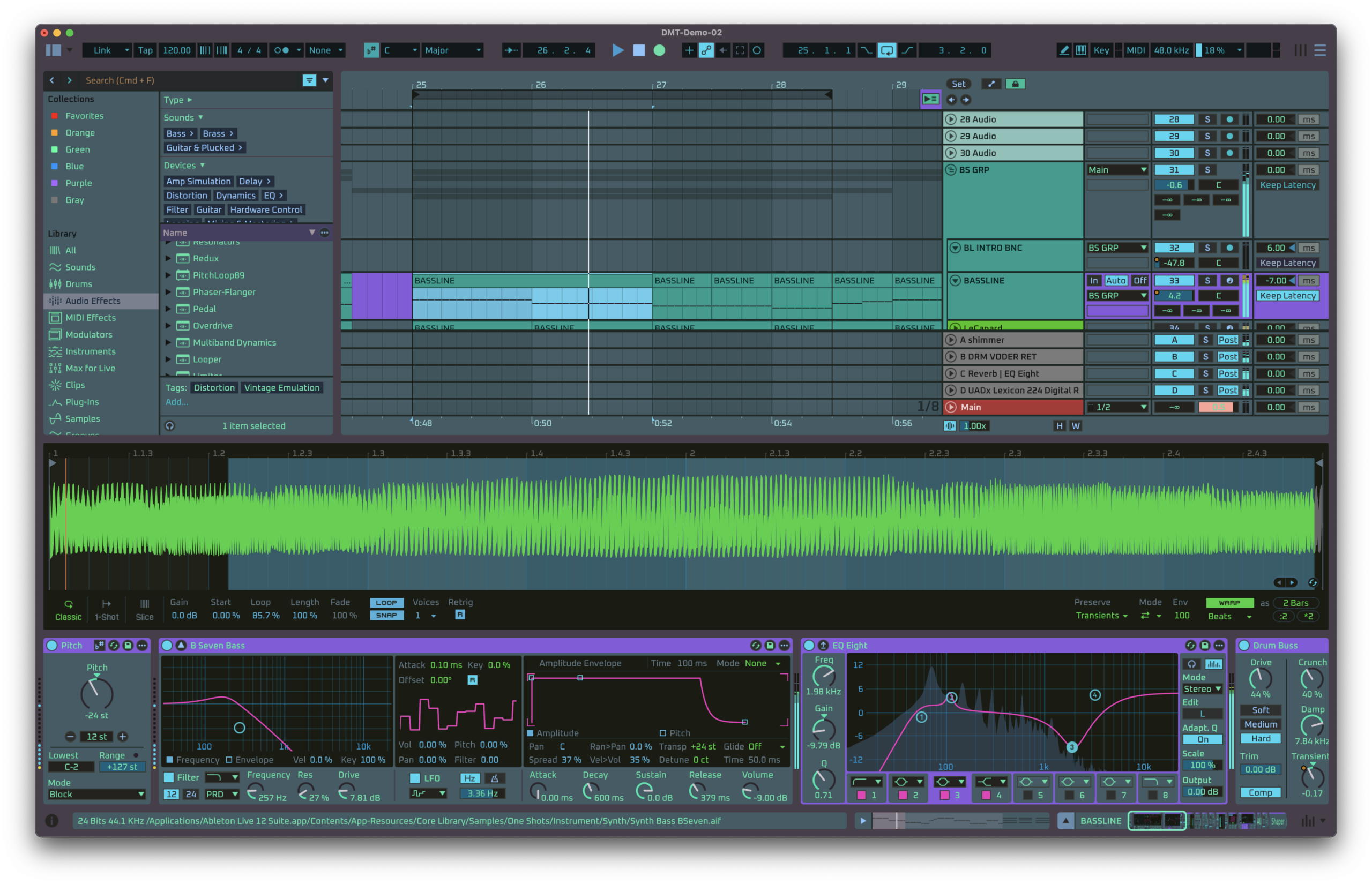
Get DMT Complete editor + track colorizing + all of the themes (inluding CRT)
** Here’s more on the question of Scriabin and synesthesia and why “ideasthesia” probably makes sense, plus, while we’re avoiding Russian composers, a nice uncalled-for dig at Beethoven which made me chuckle. Scriabin would absolutely have customized his track colors in Ableton Live; see his color organ and score for Prometheus.
* I am sometimes going to use “it’s not X, it’s Y” constructions, which come from my actual brain, and not just let LLMs steal them. Tastefully. Rarely. But when called for.
To inspire your theming, I’ll return to this video I included in the very first story on this: