There’s something magical about playing sounds with polyphonic expression. It means translating sound ideas directly to your hands and improvising live, rather than having to go back and edit those ideas in later or take your hands off the keyboard to turn a knob. Here’s a look at playing the presets I made for Elastic OSC using Expressive E’s excellent Osmose keyboard.
Osmose (synthesizer) or Osmose CE, either way you’ll have the same expressive, multi-axis keyboard, and it can map to Elastic OSC without any custom configuration. You only need to enable MPE in your host, keyboard, and Elastic OSC patch (if it isn’t already configured for MPE, as many of my presets are as are various other presets in the bank).
Notice what happens with Elastic OSC’s built-in arpeggiator selected: you can continue to transform the pattern by bending and applying pressure to the keys.
What’s nice about the Osmose is the range of multi-axis control you get out of each note. It’s effective enough that Oliver, the developer, asked if I was using clips in the background or something. Nope — this is all the factory presets that now ship in the Elastic OSC plug-in. (I’m running on my Mac, but you could also run this on an iPad. Plop that on a table or music standard, for instance.)
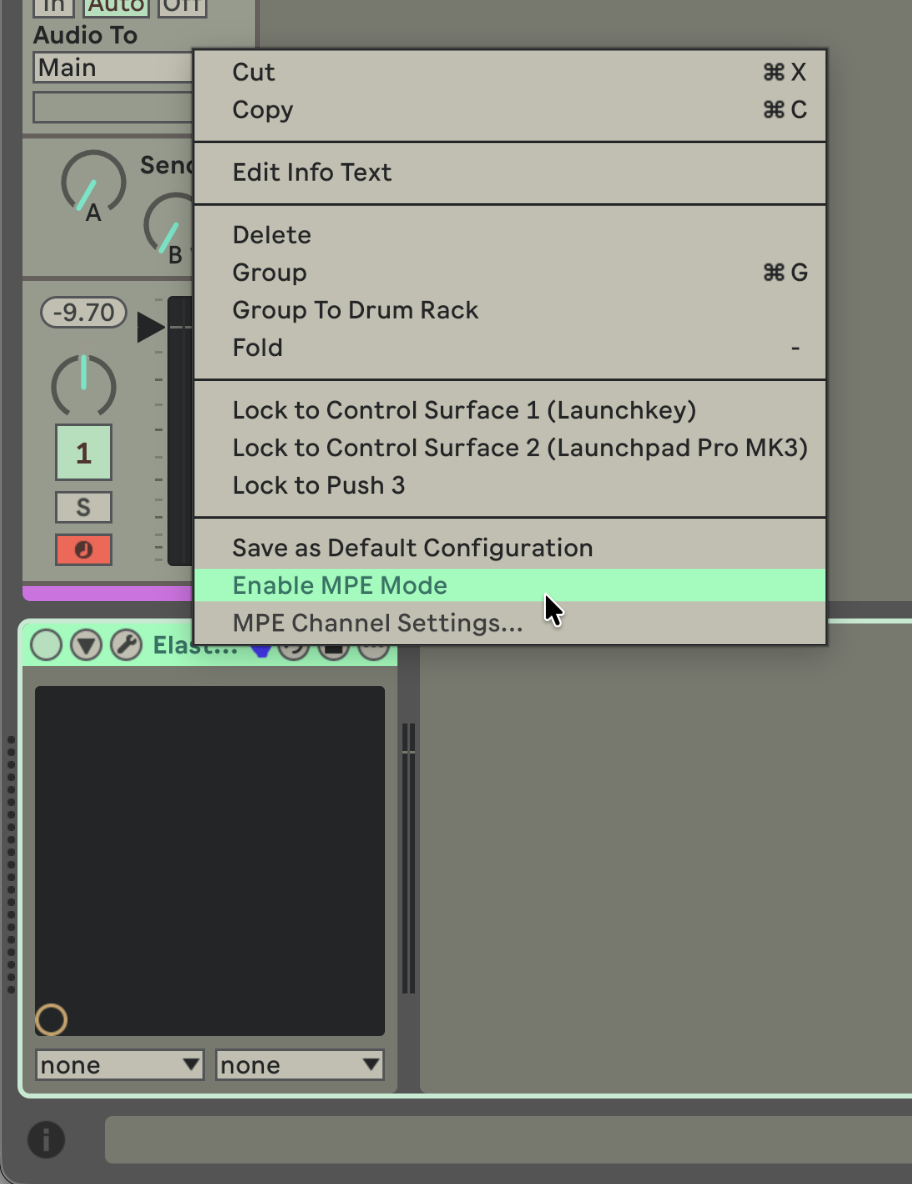
There’s very little configuration needed. In Ableton Live, plug-ins are set with MPE disabled by default. You need to switch it on per plug-in instance by right-clicking and choosing Enable MPE mode:
You also need to make sure MPE is enabled for your input device (here, the Osmose). You’ll find that checkbox in Live Settings > Tempo & MIDI > Input Ports; MPE is the right-hand column:
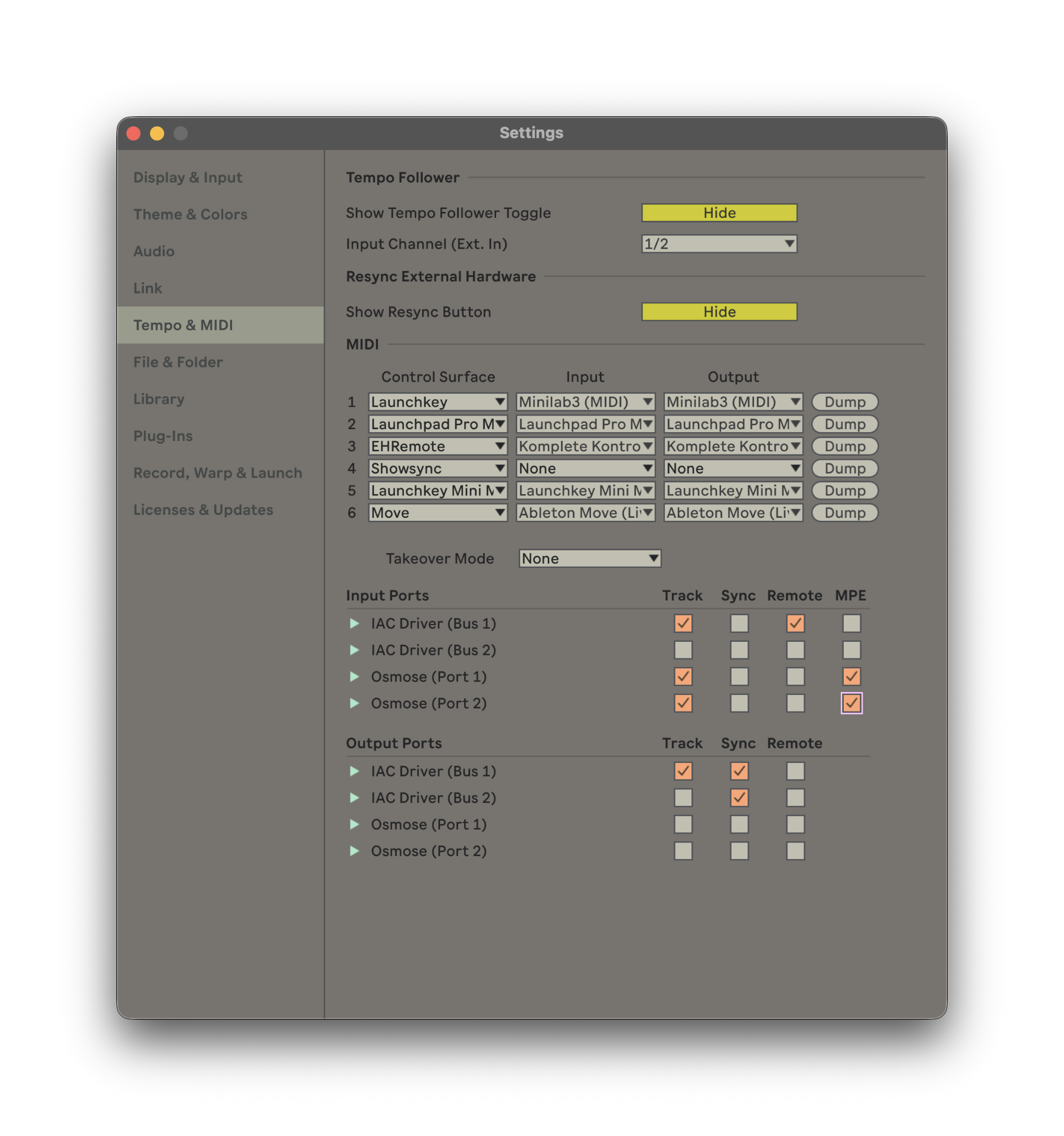
It seems like someone was afraid of what would happen if MPE were enabled and you didn’t know what you were doing. Side note: switching on MPE also enables Elastic OSC with support for Ableton’s Tuning Systems! Bonus!
Set up on the Osmose side is even simpler. Just select the MPE configuration from the config menu.
One of the things I love about the Osmose is that you don’t have to go into an editor or do a bunch of menu diving to adjust settings. The display on the left even offers immediate access to the most commonly-used parameters. You’ll see I even adjust the bend range on the fly as I’m playing to get some different effects.
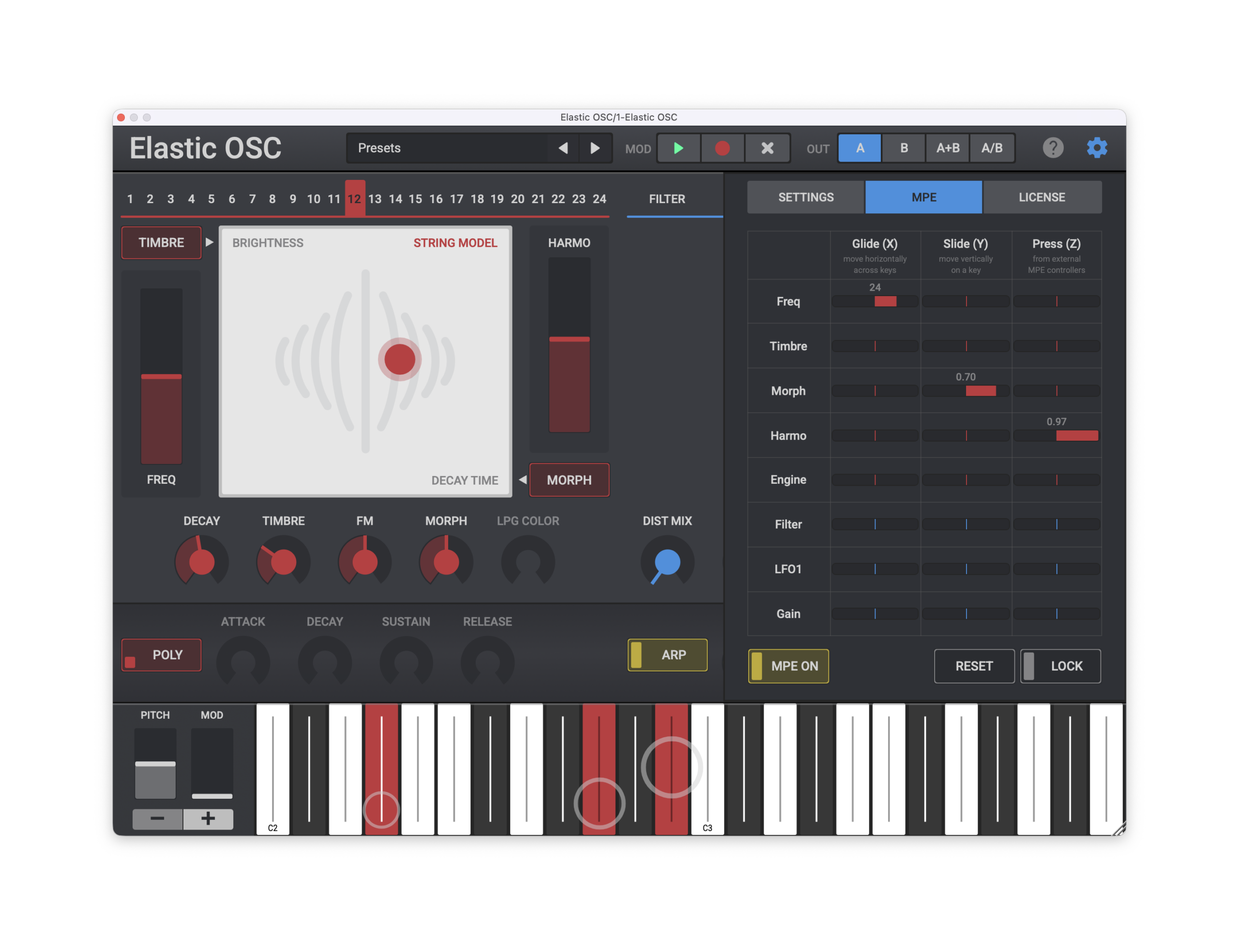
You can explore the MPE presets I created with some pre-defined mappings. But it’s also a lot of fun to create your own. In Elastic OSC (desktop and iOS), chose settings from the cog icon at the upper right, then MPE. You’ll find glide (X), slide (Y), and press (Z) access. There’s no way to represent Z in the interface, so for that you need a connected controller that sends that value — Osmose and Osmose CE are perfect for the job.
With X and Y, it’s great to use the built-in keyboard as it’s easy to visualize what you’re playing, so I do often use the GUI alongside my physical controller while I’m designing patches and tweaking amounts. One particularly wild idea is to map a value to the Engine, which will actually modulate between the multiple oscillator engines. Elastic OSC can do that without clicks. Run that through some effects and you can get some nice, leftfield patches.
For contrast, here’s an example with Ableton Push 3. I really like Push 3, too; the playing style is totally different, both in how you use multi-axis expression (which is mapped on each individual pad), the physical gesture of how you play, and of course the radically different pitch spacing of this 8×8 grid versus a keyboard manual. Having the two together can be really interesting for live sets, as well.
Hopefully that answers your questions. Let us know if you have more.
Craving that Osmose? It’s in stock and shipping now:
Expressive E Osmose at Sweetwater
Expressive E at Perfect Circuit
Previously:
Mobile updates: MPE is already supported on Android and iOS; all you need is the usual power connection to Osmose (or your preferred controller), and a way of connecting (like a USB hub connected to your mobile device’s USB-C port). Osmose is class-compliant, so it’ll work.
The preset bank I worked on is available for desktop and is coming in an update soon to mobile versions, but you’ll also find other MPE presets by folks like our friend Nerk.